
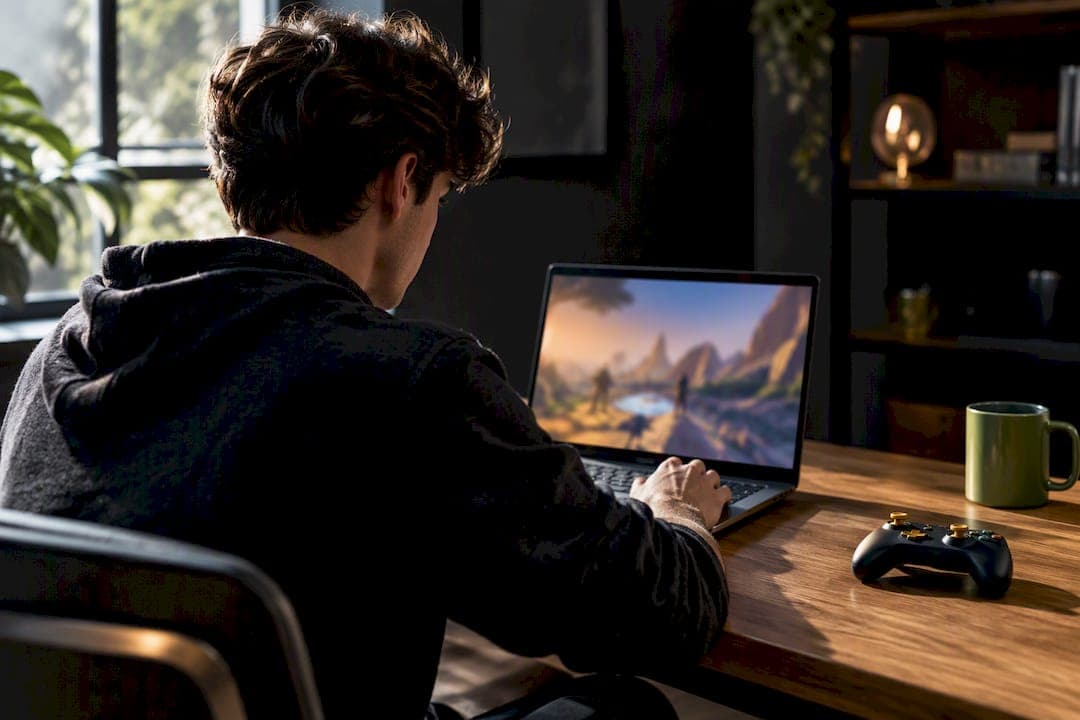
Yes, you can game on a Chromebook, and which route you pick depends on what you want to play. Cloud streaming handles the newest AAA releases, the Play Store covers mobile and indie titles, and Steam on supported Chromebooks runs local PC games through a Linux-based virtual machine. Cloud gaming lives and dies on your internet connection. Steam needs specific hardware. If you already own a Chromebook, test a cloud service first before spending money on anything else.
TL;DR:
- Cloud streaming offers instant access to AAA games but heavily depends on a stable, low-latency internet connection for smooth performance.
- To run Steam locally, a Chromebook must meet specific hardware minimums, including an Intel Core i3 or Ryzen 3 processor, 8GB of RAM, and 128GB storage.
- Wi-Fi 6 or 6E significantly improves cloud gaming experience by handling congestion and multiple devices more effectively than Wi-Fi 5.
- Most games perform well on Chromebooks if they are 2D, pixel-art, turn-based, or RPG titles, while AAA games rely solely on cloud streaming.
- Proper optimization, like closing background tabs and verifying GPU acceleration, can improve gaming performance on Chromebooks.
Table of Contents
- Gaming on Chromebook: Three Paths That Actually Work
- What Specs Actually Matter for Gaming Performance
- Network Speed, Latency, and Controllers: What Actually Breaks
- Games That Actually Run Well on a Chromebook
- How to Optimize Your Chromebook for Gaming
- Picking the Right Chromebook for Your Gaming Style
- The Tech Behind Steam on ChromeOS, Explained Simply
- Skyline's Take: Should a Chromebook Be Your Main Gaming Device?
- Looking for Instant Play Without the Setup?
- Sources
- FAQ
Gaming on Chromebook: Three Paths That Actually Work
Chromebooks give you three separate ways to play, and they don't overlap much. Picking the wrong one for your goals is the most common mistake people make when they first try cloud gaming on Chromebook hardware.
- Cloud streaming runs the game on a remote server and pipes the video to your browser or a dedicated app. Services in this category work through progressive web apps, so you're often one click away from launching a AAA title with zero installation. Costs typically run as a monthly subscription rather than a purchase.
- Android games via the Play Store are the most native experience ChromeOS offers, since the Play Store ships built into most modern Chromebooks. Older titles were touchscreen only, but that changed with the ChromeOS Game Dashboard, which now lets you map touch controls to a keyboard and gamepad.
- Steam on ChromeOS runs inside a VM called Borealis and relies on Proton to translate Windows game code so it runs on Linux. It's still in beta and only works on Chromebooks that meet specific hardware minimums, and Steam Link is a solid workaround if you own a gaming PC elsewhere on your network.
Each path fits a different mood. Streaming suits someone who wants tonight's big release without commitment. The Play Store suits casual, pick-up-and-play sessions. Steam suits someone who already owns a PC library and wants a second screen for it.
What Specs Actually Matter for Gaming Performance
Hardware requirements split cleanly depending on which path you're taking, and buyers often check the wrong spec for the wrong use case.
For Steam specifically, Google's own guidance sets a floor: an Intel Core i3 or AMD Ryzen 3 processor, 8GB of RAM, and 128GB of storage. That's not a suggestion, it's closer to a hard gate. Below that, ChromeOS won't even offer Steam as an install option.
- CPU and RAM determine whether the Borealis VM has enough overhead to run Proton's translation layer alongside ChromeOS itself. Skimp here and you'll see stutter even in older games.
- Wi-Fi generation matters more for cloud and multiplayer than for Steam. A Wi-Fi 6 or 6E chipset handles congestion and multiple connected devices far better than Wi-Fi 5, especially in apartments or shared networks.
- Display refresh rate rarely goes above 60Hz on Chromebooks, so don't expect a competitive-shooter experience regardless of which method you choose.
- Touch vs. non-touch affects your Android game library directly. Non-touch machines depend entirely on Game Dashboard mappings for titles that were built touch-first.
Thermal design quietly ruins more gaming sessions than any single spec. A thin-and-light Chromebook built for browsing tabs will throttle its CPU after 20 to 30 minutes of sustained load, whether that load is Steam or a demanding cloud stream decoding video.
Network Speed, Latency, and Controllers: What Actually Breaks
A stable connection matters more than a fast one. Cloud gaming quality depends primarily on latency and jitter, not peak download speed, which is the single most misunderstood fact about streaming games on a Chromebook.
A connection that bursts to 300 Mbps but drops packets every few minutes will feel worse than a steady, unglamorous connection. Aim for consistency over headline numbers:
- Download speed: enough headroom for 1080p or higher video, but stability matters more than the ceiling.
- Latency: lower is always better, and spikes are what cause visible stutter.
- Jitter: the real enemy. Inconsistent ping is what makes a stream feel laggy even when average latency looks fine.
Genre determines how much lag you can tolerate. Fast-twitch genres like first-person shooters and fighting games expose even small delays instantly. Turn-based strategy, RPGs, and most puzzle or card games barely notice a 50 to 100 millisecond hiccup.
For controllers, wired USB beats Bluetooth for anything competitive, since Bluetooth introduces its own small latency layer on top of whatever your network already adds. Bluetooth is fine for casual play and pairs easily with most Chromebooks through standard settings. Reserve wired connections for Steam titles or fast-paced cloud sessions where every millisecond counts.

Games That Actually Run Well on a Chromebook
Realistic expectations matter here. Chromebooks aren't going to replace a gaming PC for the newest, most demanding releases running locally, but the practical library available to you today is bigger than most people assume.
- 2D indie games and pixel-art titles run comfortably on nearly any Chromebook because they don't tax the GPU. Think platformers, roguelikes, and narrative-driven indies.
- Turn-based and strategy games tolerate the occasional stutter or lag spike, making them forgiving even on modest hardware or shakier connections.
- RPGs and MMOs, many of which are Steam-compatible or available as Android ports, run well on Chromebooks meeting the 8GB RAM threshold.
- Mobile ports and Play Store exclusives are the deepest library on ChromeOS, and Game Dashboard now makes many of the touch-only ones playable with a mouse and keyboard.
- AAA titles are realistically a cloud-streaming category only. Reviewers who've spent extended time gaming on Chromebooks, including a week-long test from Tom's Guide, consistently found streaming to be the only reliable way to play the newest releases.
Touch-only games without Game Dashboard mapping remain the weak spot. Check for a touchscreen or confirm mapping support before buying a game expecting keyboard controls.
How to Optimize Your Chromebook for Gaming
A few safe adjustments make a real difference before you ever touch a system flag.
- Close background tabs and apps. ChromeOS shares RAM across everything running, and a dozen open tabs will starve a Steam VM faster than the game itself does.
- Check
chrome://gputo confirm hardware video decode is active. If it says software-only, your device is decoding video on the CPU, which tanks performance in both cloud streams and local games. - Confirm Game Dashboard mappings are set before launching a touch-first Android title, or you'll be tapping a screen that isn't responding the way you expect.
- Try Vulkan or zero-copy flags cautiously. Both can improve rendering performance, but change one flag at a time and note what happens. Avoid flags like Parallel Downloading during active cloud sessions, since they compete for bandwidth and cause stutter.
- Watch your storage. Steam's storage ballooning system dynamically manages disk space between ChromeOS and the Steam VM, which reduces installation failures but still requires real free space on the host drive before a big install starts.
Pro Tip: Before you touch any experimental flag or consider a Powerwash, back up save files tied to local accounts and confirm cloud saves are synced. A factory reset wipes local Steam data completely, and you don't want to discover that mid-install.
If you're troubleshooting a stubborn graphics issue, running the WebGL and GPU diagnostics built into Chrome is a faster first step than reinstalling anything.
Picking the Right Chromebook for Your Gaming Style
Your buying decision splits into two tracks depending on which path you're prioritizing, and mixing up the priorities is how people end up disappointed.
Cloud-first buyers should weight Wi-Fi hardware, screen quality, and battery life over raw processing power, since the heavy lifting happens on a remote server.
Steam-first buyers need to treat the CPU family, RAM, and storage as non-negotiable minimums, not nice-to-haves.
- Cloud path: Wi-Fi 6 or better, a bright 1080p display, 8+ hours of battery, and a reliable home connection.
- Steam path: Intel i3 or Ryzen 3 minimum, 8GB RAM (16GB is more comfortable), 128GB storage minimum, and Ethernet support if you can get it for downloads.
- Either path: check for a headphone jack or Bluetooth audio, and confirm USB ports exist for a wired controller.
Ignore vague marketing terms like "gaming-ready" on a product page. Look for the actual chipset name and RAM figure instead. Those two numbers tell you more than any badge on the box.
The Tech Behind Steam on ChromeOS, Explained Simply
Steam on ChromeOS runs inside Borealis, a purpose-built Linux virtual machine, because ChromeOS itself can't run Windows executables natively. Proton sits inside that VM and translates the game's Direct3D calls into Vulkan using components called DXVK and VKD3D-Proton, which is why a game built for Windows can run at all on a Chromebook.

That translation layer is also why your first launch of any game feels sluggish. Shaders have to compile before the game runs smoothly, and that compilation happens fresh unless a cache already exists.
Storage ballooning solves a related problem: keeping the VM's view of available disk space in sync with what ChromeOS actually has free, which reduces corrupted installs and overprovisioning errors. It's not flashy, but it's the reason Steam installs fail less often now than they did in early beta builds.
Skyline's Take: Should a Chromebook Be Your Main Gaming Device?
Chromebooks are genuinely good for gaming now, but only if your expectations match the hardware. The affordability and convenience are real. So are the ceilings on AAA performance and upgradeability once you hit them.
Buy one if you want a portable, low-maintenance second gaming device or your budget rules out a dedicated gaming laptop. Skip it if you need consistent 4K or ray tracing. Start with a free cloud demo, poke around the Play Store, and check your model against Steam's requirements before spending real money.
— Skyline
Looking for Instant Play Without the Setup?
Everything above assumes you're chasing a specific title through streaming, the Play Store, or Steam's install process. Sometimes you just want to open a browser tab and play something fun for twenty minutes, no shader compilation and no storage math required. That's the gap Luckyluxe fills for Chromebook owners: browser-based slots, fishing games, and arcade titles that load instantly on any Chromebook, no matter what CPU or RAM you're running.
You get Gold Coins for casual entertainment play and the chance to earn Sweeps Coins through promotions for a shot at redeemable prizes, all without installing anything or worrying about Wi-Fi jitter affecting your session. If Steam's hardware gate or a cloud subscription feels like more setup than you want tonight, browse the current game selection at Lucky Luxe and start playing in the same tab you're reading this in.
Sources
The technical details above draw from ChromeOS's own engineering blog, including its posts on the Game Dashboard and storage ballooning, plus Google's official Steam-on-Chromebooks support page for hardware minimums. SlashGear's rundown of Chromebook cloud gaming support and GVeC's explainer on cloud gaming and internet speeds fill in the network and hardware-context details.
FAQ
Is a Chromebook Good for Gaming?
Yes, within limits. Cloud streaming covers AAA titles, the Play Store covers mobile and indie games, and Steam runs local PC games on Chromebooks that meet Google's hardware minimums of an Intel i3 or Ryzen 3 chip, 8GB RAM, and 128GB storage.
Can You Play Games on Chromebooks?
Yes. You have three routes: streaming a game from the cloud, downloading an Android title from the Play Store, or installing it through Steam on a supported device. For instant browser-based play with no install at all, options like Lucky Luxe's slots and arcade games work on any Chromebook.
Can I Play GTA on a Chromebook?
It depends on the title and your hardware. Some older GTA entries run through Steam if your Chromebook meets the minimum specs, while newer entries are more realistically played through cloud streaming services since local performance demands are higher.
Is a Chromebook Basically a PC?
Not exactly. A Chromebook runs ChromeOS, a Linux-based operating system built around the browser, rather than Windows. Steam games run through a virtual machine and a translation layer called Proton rather than natively, which is a meaningfully different setup than a Windows gaming PC.