
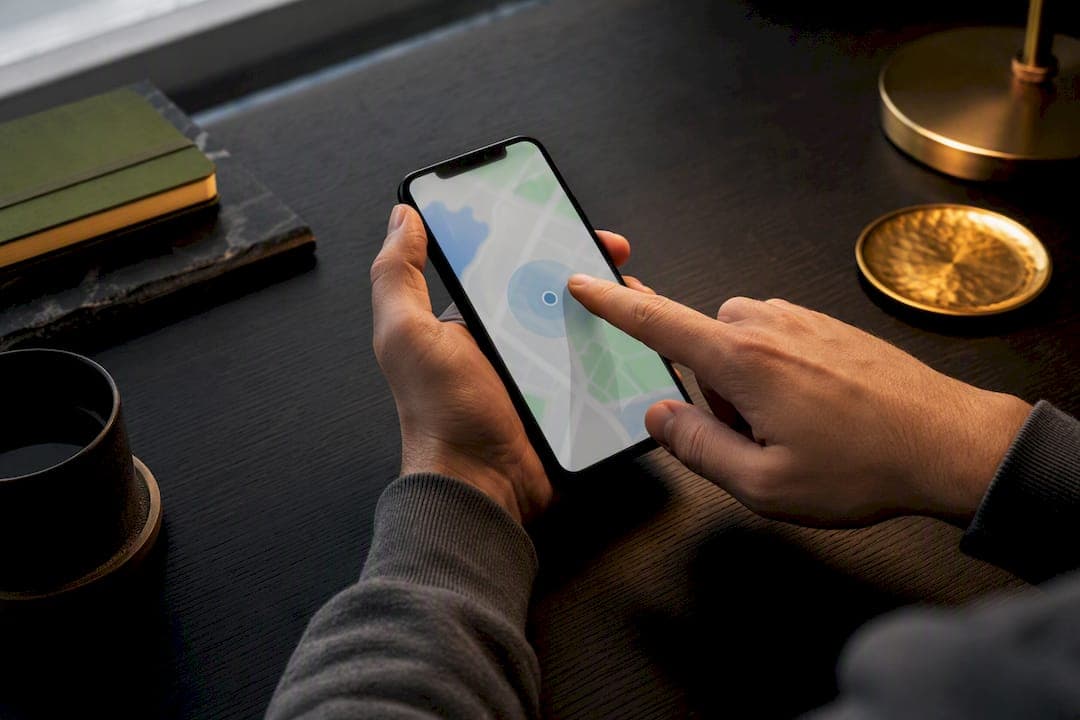
Location verification fails most often because the system can't collect enough trustworthy signal, usually a VPN or proxy, a permissions setting stuck on "approximate," or an account region that doesn't match your device. Turn off any VPN or proxy, switch your phone or browser to precise location, and retry on mobile data before doing anything else. If that doesn't clear it, the checklist below covers the rest.
TL;DR:
- VPNs, proxies, or private DNS are the main triggers of location verification failures because they mask your actual location and should be disabled first.
- Turning on device location services, granting precise access, and enabling Wi-Fi even when on mobile data are crucial steps to improve location accuracy and resolve errors.
- Testing on mobile data before other network adjustments helps identify if your router, VPN, or network setup is causing the problem, especially if verification succeeds on cellular.
- Matching your device’s region and time zone with your account settings prevents common region-related verification errors, which are often caused by mismatched profiles.
- If multiple retries fail, collecting detailed information and waiting 48 hours before contacting support helps prevent account flags that cannot be cleared through troubleshooting alone.
Table of Contents
- Fixing "Location Verification Failed": A Quick Checklist
- Why Location Verification Checks Fail in the First Place
- Platform-Specific Fixes That Actually Work
- When to Contact Support (And What to Send Them)
- How to Avoid This Next Time
- A Note From Lucky Luxe on Location Checks
- What Most Troubleshooting Guides Get Backwards
- Where to Get Help Inside Lucky Luxe
- Sources
- FAQ
Fixing "Location Verification Failed": A Quick Checklist
Work through these in order. Most location authentication failed errors clear up in the first three or four steps, so don't skip ahead.
- Turn off VPNs, proxies, and private DNS. These are the single biggest cause of a failed location confirmation because they make your device look like it's somewhere it isn't.
- Reboot your router and device. A stale IP lease or a router still caching an old network path can throw off IP-based location checks.
- Turn on device location services and grant Precise Location. On Android and iOS, apps that only get "approximate" access often can't clear high-assurance checks.
- Allow location access in your browser settings for the specific site if you're verifying through a browser rather than an app.
- Turn on Wi-Fi, even if you're on mobile data or Ethernet. Many verification systems scan nearby Wi-Fi networks to confirm you're really where you say you are, and this step alone resolves a surprising number of geo verification issues.
- Switch to mobile data if Wi-Fi doesn't help. This isolates whether your home or office network, not your device, is the problem.
- Match your account region and device time zone. A phone set to one time zone while your account profile lists another is a common trigger for location check errors.
- Sign out of other accounts, clear cookies, and stop. If you've failed more than two or three times, wait 48 hours before trying again. Repeated rapid attempts can trip an anti-abuse flag that a clean retry won't fix.
Pro Tip: Test on mobile data before you test anything else on your home network. If verification passes on cellular data, the problem is almost always your router, VPN, or a corporate filter, not your device or your account.
Why Location Verification Checks Fail in the First Place
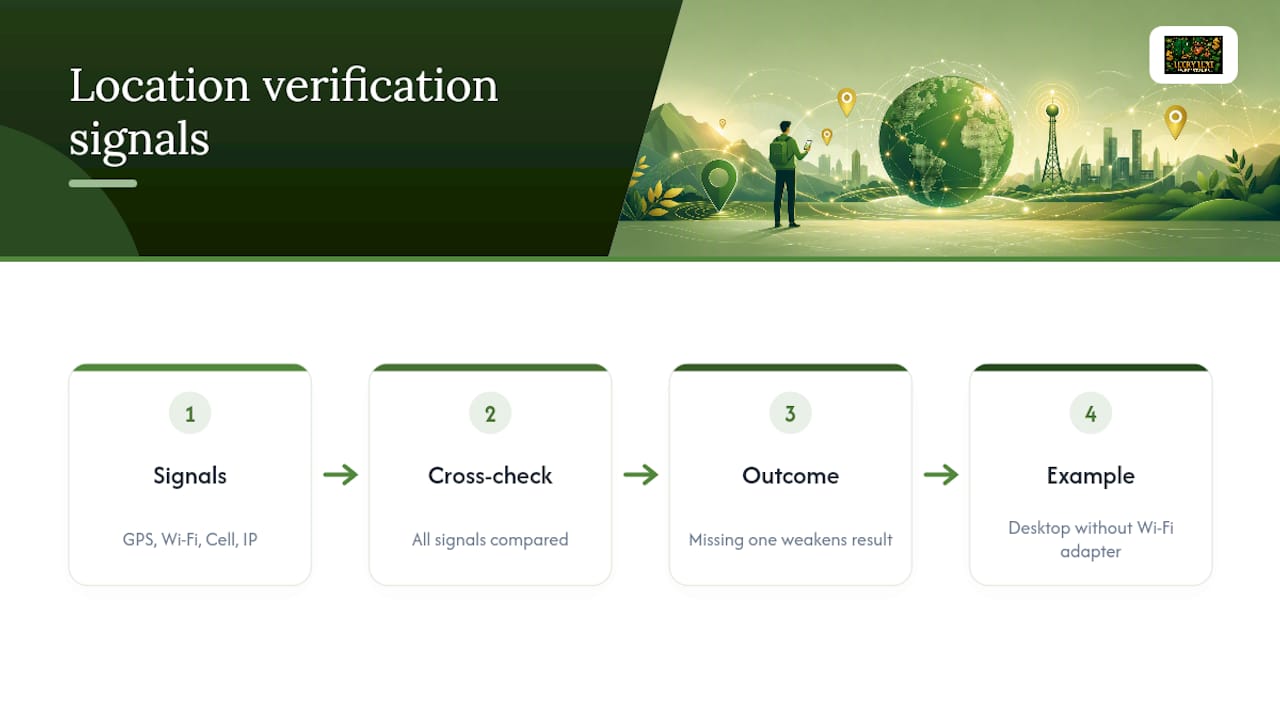
Verification systems rarely rely on one signal. They cross-check GPS, Wi-Fi access points, cell towers, and your IP address, and when one of those goes quiet, the whole check can collapse even if the others look fine. A phone with GPS disabled but Wi-Fi enabled might still pass. A desktop with no Wi-Fi adapter active has one less data point to offer, and that gap is enough to fail a high-assurance check.
Browsers add another layer: geolocation requests only work over secure HTTPS connections, so an insecure origin gets blocked outright before the check even starts. Mobile apps work differently. Android and iOS require explicit runtime permissions, and choosing "approximate location" instead of precise access is enough to fail a check that needs exact coordinates.
Network setup matters just as much as permissions. VPNs, proxies, enterprise firewalls, private DNS, and remote desktop tools all reroute or mask your real connection, and most verification systems read that as either fraud or an attempt to obscure your true location. When accuracy checks fall back to IP-only positioning, the Google Maps Geolocation API documentation shows that specific error codes explain exactly why the fallback happened. Some failures aren't technical at all. They're account-level flags or region mismatches that only vendor support can clear.
Platform-Specific Fixes That Actually Work
The generic checklist gets most people unstuck, but where you're verifying changes what to check first.
- Mobile apps: Confirm Precise Location is granted, not just "while using the app." Enable background location sharing if the app prompts for it. For multifactor authentication flows tied to Conditional Access policies, Microsoft Authenticator has to share GPS coordinates directly; if it hasn't, the sign-in flow will prompt you to enable location inside the app itself.
- Desktop and browser: Enable location access for the site in your browser settings, and use a browser that supports the Geolocation API properly. Keep your Wi-Fi adapter turned on even if you're plugged in through Ethernet. Some desktop verifiers scan nearby SSIDs to strengthen their confidence, and a wired-only setup skips that evidence entirely. Install any vendor-required location plugin if one is requested.
- Regulated services (sportsbooks, rewards programs): Keep Wi-Fi active, avoid testing near a state or regional border where signal overlap confuses the check, and disable any VPN or remote-desktop tool completely rather than just pausing it.
- Developer, cloud, or workplace accounts: Clear the Google Play Services cache on Android, confirm your device region matches your account or project region, and check whether your organization's Conditional Access policy restricts sign-ins to an "allowed regions" list, since that's a policy decision, not a bug.
When to Contact Support (And What to Send Them)
If you've worked through the full checklist and the error keeps coming back, or if the message specifically mentions a region flag or blocked redemption, it's time to escalate. Client-side fixes can't override an account-level restriction.
Before you open a ticket, gather:
- The exact error text, plus a screenshot
- Your device model, OS version, and browser or app version
- Your network type (home Wi-Fi, mobile data, office network) and, if you have it, your IP address
- Every troubleshooting step you already tried
- Any previous case number, if this isn't your first ticket
Vendor guidance on recurring geolocation errors makes clear that support teams need this level of detail to clear an account flag. If you've had multiple failed attempts, wait at least 48 hours before retrying or reopening a case. Immediate resubmission tends to reinforce the flag rather than clear it, according to Microsoft's own troubleshooting threads.
How to Avoid This Next Time
Keep Precise Location turned on for apps you trust, and only grant background access when the app genuinely needs it. Skip auto-connecting VPNs while you're using any location-sensitive service. If your VPN app supports split tunneling, route only the traffic that needs privacy through it and leave everything else direct.
Update your device's region and time zone the moment you land after travel. A mismatch here is one of the quieter causes of a location authentication failed error days later. If a service asks for SMS verification, register a real, non VoIP number. VoIP numbers get flagged more often. Finally, keep a record of any past support case number. It saves time if you ever need to escalate again.
A Note From Lucky Luxe on Location Checks
The platform runs location and account checks to protect fair play across games, not to make life harder for real players. Trying to bypass those checks usually creates more delays than it fixes. Our guides on login issues and referral verification cover the platform-specific version of this problem, and if a flag does hit your account, support review is the fastest way through it.
What Most Troubleshooting Guides Get Backwards
Most guides treat location verification failures as a single problem with a single cause, usually blaming the VPN and calling it done. That's incomplete. A failed check is a trust score problem: the system wanted several consistent signals and got one weak one or none at all. Fixating on just the VPN misses desktop setups that fail from a disabled Wi-Fi adapter, or Conditional Access flows that fail because an authenticator app never shared GPS coordinates in the first place.
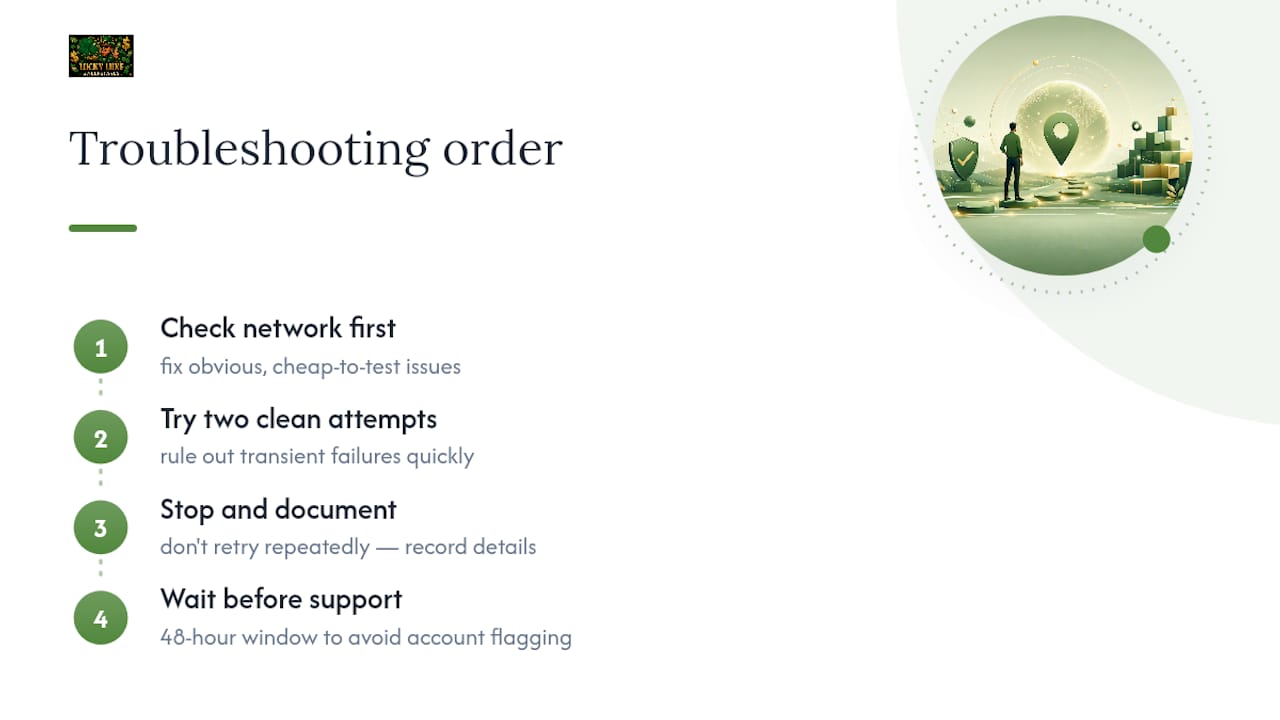
The order of operations matters more than people give it credit for. Fix the obvious network issues first, because they're cheap to test and rule out fast. But if the error persists after two clean attempts, stop retrying and start documenting. Repeated attempts without a break are what turn a fixable technical glitch into an account-level flag that only support can clear. The 48 hour wait isn't bureaucratic caution. It's the difference between a five-minute fix and a week-long support ticket.
— Skyline
Where to Get Help Inside Lucky Luxe
If a verification snag is keeping you out of your account rather than some other app, start with the platform's own resources before assuming the worst. The troubleshooting guide for common login issues walks through the same checklist logic covered above, tuned specifically for Lucky Luxe's login flow, and the profile settings guide shows exactly where to check your region and phone number if a mismatch is the culprit.
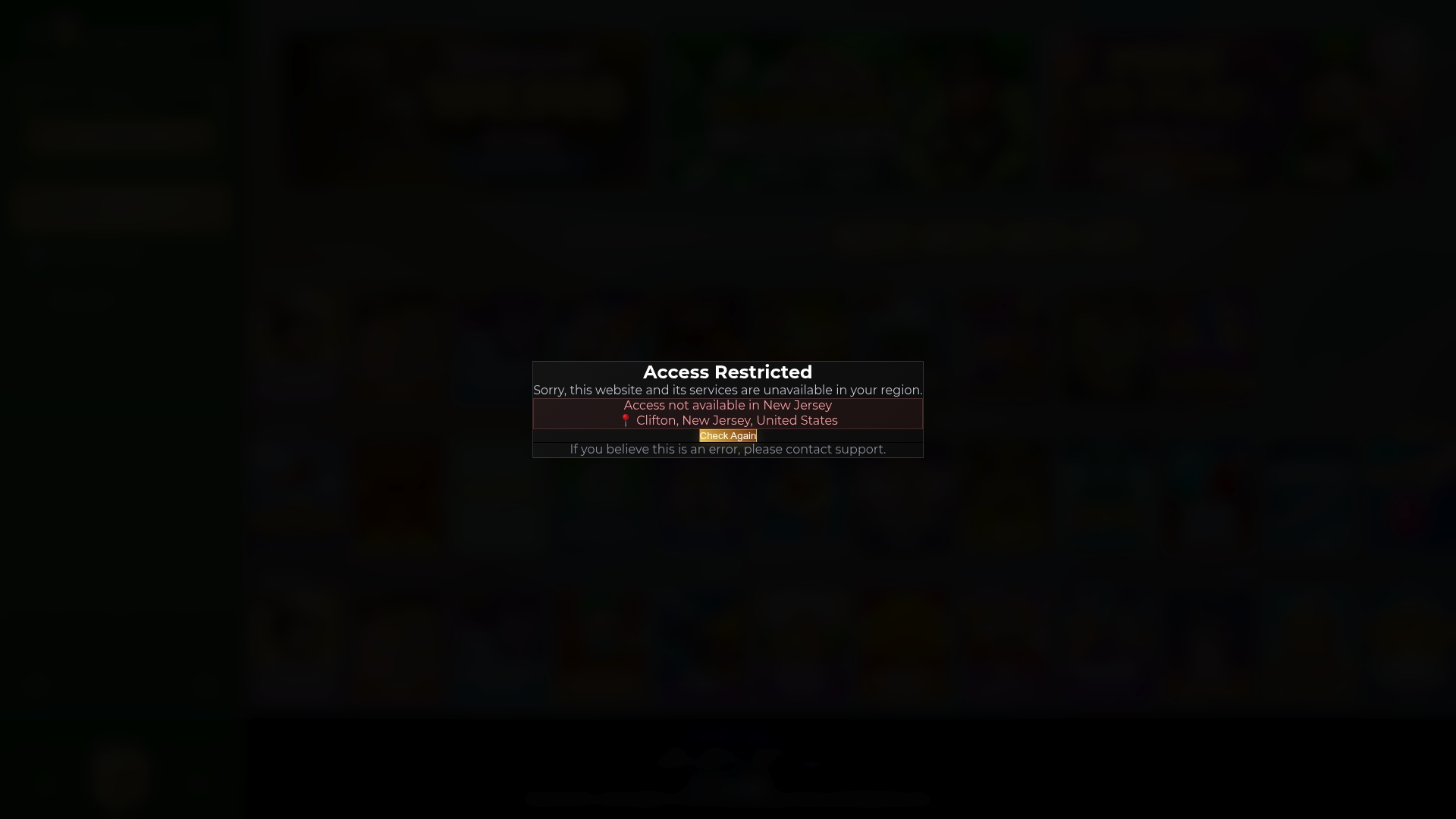
None of this replaces official support when an account gets flagged. If your checklist attempts don't clear things up, Lucky Luxe's support team can review the account-level details a self-service guide can't touch. Bring the same evidence outlined earlier, exact error text, device and network details, and prior case numbers if you have them, and you'll move through review faster. Head to the Lucky Luxe site to start a support request or browse the game library while you wait on a resolution.
Sources
- Geolocation on secure contexts only — Chrome Developers
- Unresolved geolocation verification error after previous support case - Microsoft Q&A
FAQ
Why does my phone keep saying verification failed?
Your device is usually missing one of the signals the check needs, most often precise GPS, Wi-Fi scanning, or a clean IP address without a VPN in the way. Try switching to mobile data and granting Precise Location access, then retry.
How do I unblock location permissions?
On Android or iOS, go into your device settings, find the app in question, and set its location permission to "Precise" or "Allow all the time" if background access is required. On desktop, check your browser's site settings and allow location for that specific site.
How do I fix a geolocation problem?
Start with the network: disable any VPN, proxy, or private DNS, then turn on Wi-Fi even if you plan to test on mobile data. If the error mentions your region specifically, confirm your device's time zone and account region match, since a mismatch is a common trigger for a failed location confirmation.
How do I reset Google location service?
Clear the cache for Google Play Services in your Android settings, then toggle location off and back on. This forces the service to rebuild its location data from scratch, which often resolves lingering errors tied to stale cached positioning.
When should I contact support instead of troubleshooting further?
Reach out once you've tried the full checklist and the error still won't clear, or if the message specifically mentions a blocked redemption or region flag. Bring your exact error text, device details, network type, and any prior case number so the review moves faster.