
Try these three things first: confirm your username and password are correct, hit "Forgot Password" to request a reset link, and check that your MFA code is the most recently generated one. Most Luckyluxe players who can't get in are stopped by one of those three. If none of them works in the next two minutes, run through this checklist before going further:
- Confirm you're using the right email address (check for multiple accounts)
- Turn off Caps Lock and retype your password manually
- Check your spam folder for the reset or verification email
- Close the browser completely, reopen it, and try again
- Disable any VPN or proxy before logging in
- Try a different browser or device to rule out a local issue
After each step, attempt to log in once. If it works, stop. If you're still locked out, the detailed flow below will get you there.
Table of Contents
- How to troubleshoot common login issues online, step by step
- Why are your MFA codes not working?
- What to do if your account is locked or suspended
- Common error messages and what they mean
- How to avoid login problems in the future
- How to contact Luckyluxe support and what to expect
- Key Takeaways
- The part most guides skip
- Still locked out? Here's where to go on Luckyluxe
How to troubleshoot common login issues online, step by step
Work through these in order. The rule that saves the most time: change one thing, then test. Changing several settings at once makes it impossible to know what actually fixed it, and it can trigger additional security holds on your account.
Step 1: Verify your credentials
Confirm the exact email address tied to your Luckyluxe account. Many players have two or three email addresses and simply try the wrong one. Check for invisible spaces before or after the address, and make sure the domain is complete (e.g., @gmail.com, not @gmail). If you've used a password manager, verify it's autofilling the current password, not a saved old one.
Step 2: Reset your password
Use the "Forgot Password" link on the login page. The reset email usually arrives within a few minutes. If it doesn't show up, check your spam and junk folders, and allowlist the sender address so future emails get through. Once you click the reset link, clear your browser's saved passwords for Luckyluxe so the old cached credentials don't interfere.

Step 3: Clear cache and cookies
Stale authentication tokens in your browser are a surprisingly common culprit. Go to your browser settings, clear cache and cookies, then close the browser completely before reopening it. That last step matters — the session data doesn't fully flush until the browser restarts.
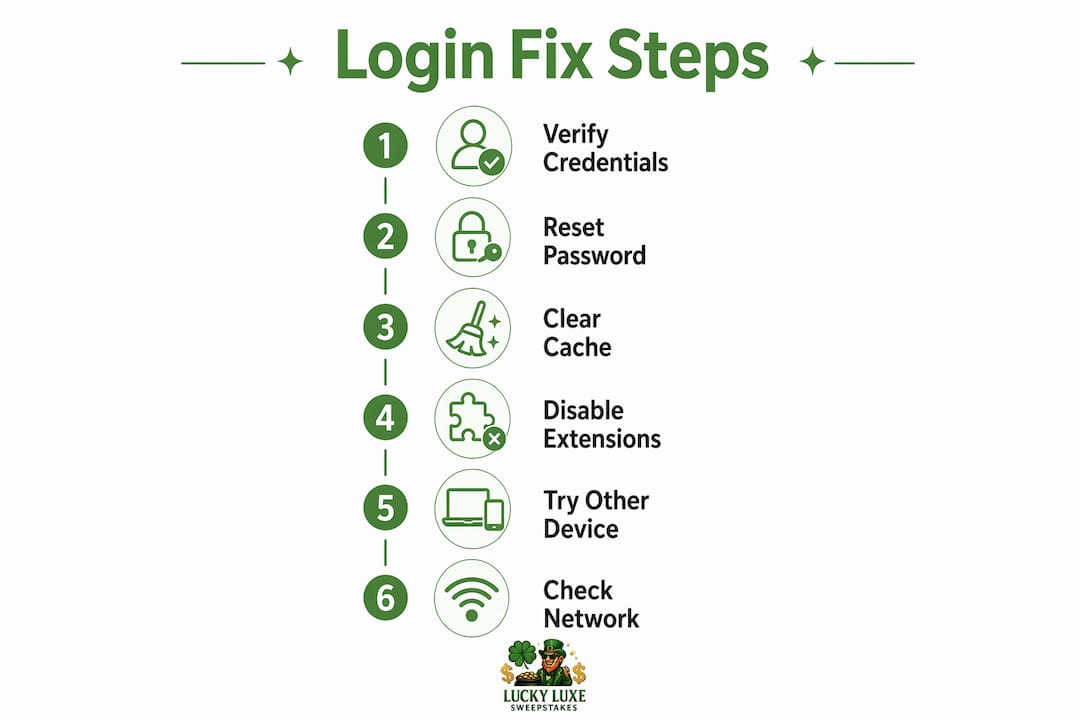
Step 4: Check browser extensions and app version
Adblockers and privacy extensions can block the scripts that power the login form. Disable all extensions temporarily and try again. Also confirm your browser or Luckyluxe app is up to date — an outdated version can fail on newer authentication protocols.
Step 5: Try another device or browser
If the issue persists, open Luckyluxe on a different browser (Chrome, Firefox, Safari) or a different device entirely. If it works there, the problem is specific to your original browser or device setup.
Step 6: Check your network
VPNs, proxies, and strict firewalls can block authentication requests entirely. Turn off any VPN or proxy, then try again. If you're on Wi-Fi, switch to mobile data (or vice versa) to rule out a router issue.
Pro Tip: Wait 1–2 minutes after clearing cache or switching networks before attempting to log in again. Session data and DNS caches need a moment to reset.
Support request template — copy this before contacting Luckyluxe: Username/email: [your login email] Device and browser (or app version): [e.g., iPhone 15, Safari 17] Exact error message: [copy it word for word] Time of the error: [date and time, include time zone] Screenshot: [attach] Recent transaction or purchase ID (if applicable): [optional but speeds verification]
Why are your MFA codes not working?
MFA codes are time-sensitive. Only the most recently generated code will authenticate — requesting a second code invalidates the first. Keep the code-entry page open while you retrieve the code; navigating away resets the session.
Where codes commonly go missing:
- Spam or junk folder (automated senders get filtered)
- Blocked by your email provider's security rules
- Delayed by your mobile carrier (SMS codes can lag by several minutes)
- Carrier web portal (some carriers hold messages there before delivering to your phone)
MFA troubleshooting flow:
- Request a new code and use only that one.
- Check spam and junk immediately.
- Add the platform's sender address to your contacts or allowlist.
- If SMS is delayed, log into your carrier's web portal to check for held messages.
- Wait two minutes, then request another code if the first still hasn't arrived.
- If available, switch to an authenticator app (Google Authenticator, Authy) as a more reliable alternative to SMS.
What to do if your account is locked or suspended
Repeated failed login attempts trigger automated fraud detection on most platforms. Luckyluxe's security systems may place a temporary hold after several incorrect entries. Don't keep retrying — each failed attempt can extend the lockout window.
Recovery steps:
- Stop attempting to log in immediately.
- Use the "Forgot Password" or account recovery workflow to reset credentials.
- If the recovery flow doesn't resolve it, contact Luckyluxe support with the template above.
- Prepare to verify your identity: support will typically ask for the email on file, recent purchase details, or device information.
- While waiting for a response, preserve any screenshots or error messages you've seen.
Pro Tip: Include recent account activity context in your support message — a Gold Coin purchase date or the last game you played. It speeds identity verification significantly.
What to expect from support: Luckyluxe's team will confirm your identity, review account activity for signs of unauthorized access, and either restore access or walk you through a secure recovery process. If your account was compromised, they may require additional verification before restoring it.
Common error messages and what they mean
Error messages are the fastest diagnostic tool available — read them carefully before trying anything else.
- "Incorrect password" — Retype manually; check Caps Lock and saved autofill passwords.
- "User not found" / "Account doesn't exist" — Confirm the email address; you may be using a different one than you registered with.
- "Account locked" — Stop retrying. Use the recovery flow or contact support.
- "Verification failed" — Request a fresh MFA code; check spam and allowlist the sender.
- "Server unavailable" / "Something went wrong" — Wait a few minutes and try again; this is usually a temporary platform issue.
- Captcha or bot-detection block — Complete the challenge fully, reload the page, and disable any privacy extensions that might be interfering with the captcha script.
Always copy the exact error text before closing the page. That wording is what support needs to diagnose the issue quickly.
How to avoid login problems in the future
A few low-effort habits eliminate most repeat lockouts.
- Use a password manager (Bitwarden, 1Password, or similar) to store a strong, unique password for Luckyluxe.
- Keep your recovery email address and phone number current in your account settings.
- Enable two-factor authentication and store your backup codes somewhere secure, offline.
- Update your browser or app regularly; outdated versions miss authentication protocol updates.
- Check your account security settings periodically to confirm trusted devices and contact info are still accurate.
- Limit aggressive privacy extensions; some antivirus and privacy tools block the cookies needed to maintain your session.
Pro Tip: Once a month, open your Luckyluxe account on a secondary device and confirm you can log in. Catching a stale password or outdated recovery contact before a lockout is far easier than recovering after one.
How to contact Luckyluxe support and what to expect
If self-help steps haven't worked, contact Luckyluxe support directly. Use the template from the troubleshooting section above and attach it to your message. Here's what the process typically looks like:
- Submit your support request through the official Luckyluxe help channel with all required details.
- Support will confirm receipt and may ask for additional identity verification (purchase receipts, device info).
- Do not attempt to log in repeatedly while waiting — it can complicate the review.
- Keep your screenshots and error messages accessible; support may request them.
- Once verified, support will either restore access directly or guide you through a secure reset.
For guidance on what to include and how to prepare your support request, the Luckyluxe blog has a dedicated walkthrough. If you're unsure whether you're on the official login page, cross-reference the platform trust indicators checklist before entering any credentials.
Key Takeaways
Most Luckyluxe login problems resolve at the credential or browser level — the fastest path is to verify your email, reset your password, and confirm your MFA code is the most recent one.
| Point | Details |
|---|---|
| Credentials first | Confirm the exact email and retype your password manually before anything else. |
| Clear cache and cookies | Stale authentication tokens are a common hidden cause; close and reopen the browser after clearing. |
| MFA codes expire fast | Use only the most recently requested code and keep the entry page open while retrieving it. |
| One change at a time | Changing multiple settings at once masks the root cause and can extend lockouts. |
| Luckyluxe support | If self-help fails, submit the copy-ready template with your username, error text, timestamp, and screenshots. |
The part most guides skip
The single biggest mistake players make when they can't log in is treating it as a race. They try the wrong password three times, request two MFA codes in a row, then clear cache, disable a VPN, and switch browsers all at once. By the time they contact support, the account has a security hold, the error message is gone, and they can't remember what they changed.
Methodical troubleshooting isn't slow — it's actually faster, because you find the real cause on the first or second try instead of creating three new problems. The secure login practices that Luckyluxe builds into its platform are designed to protect your account, not frustrate you. Working with them, one step at a time, is what gets you back in. Players who arrive at support with a clear error message, a timestamp, and a screenshot get resolved faster than those who can only say "it just didn't work." That preparation is the real fix.
Still locked out? Here's where to go on Luckyluxe
Luckyluxe gives players a direct path back in when self-help doesn't cut it. Head to luckyluxe.com and use the support resources there to submit your request. Attach the template you prepared, including your username, the exact error message, your device and browser details, and a screenshot if you have one. The support team handles identity verification and account recovery for Gold Coin players and free players alike.
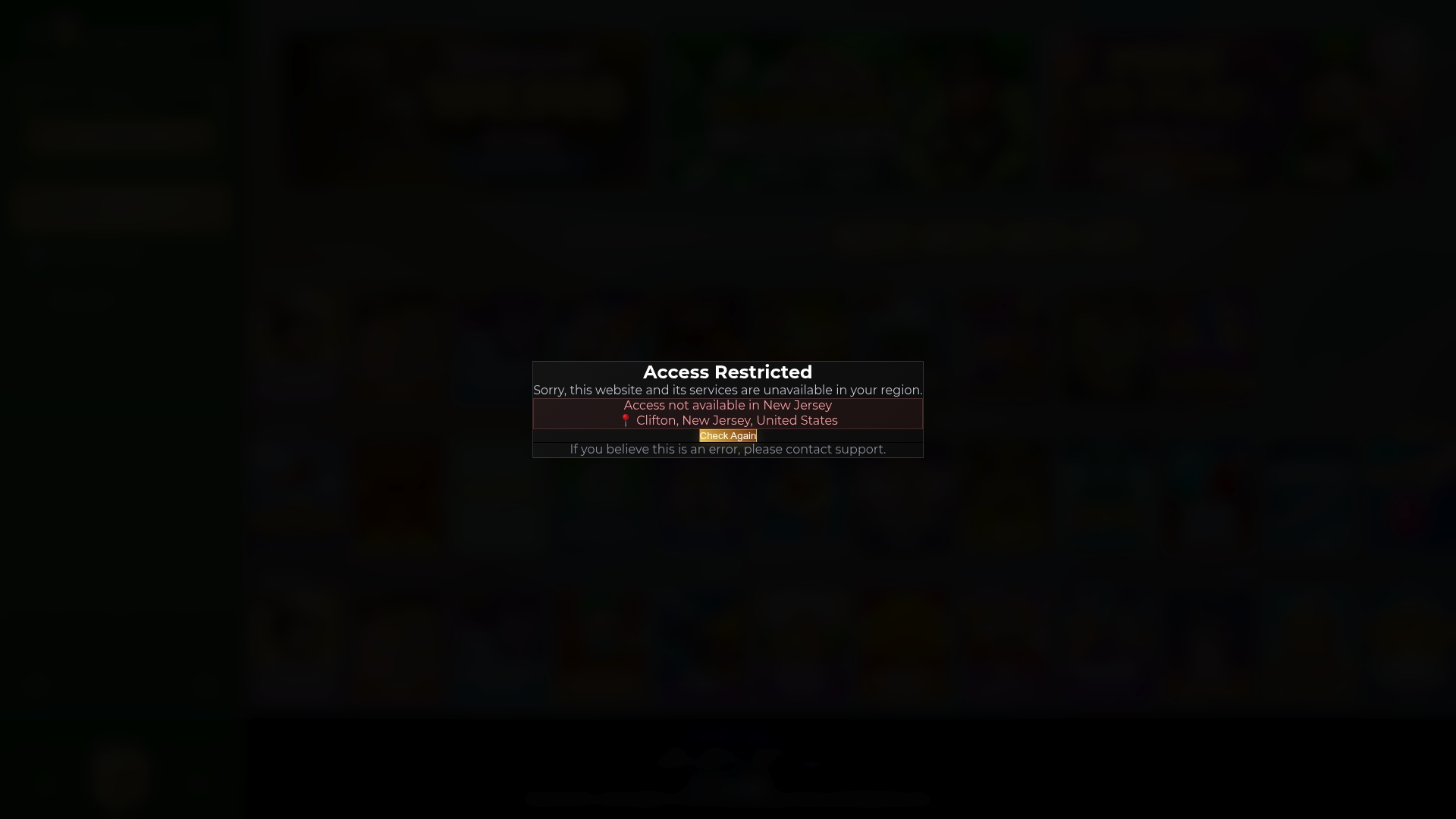
For more context on what to expect during the verification process, the Luckyluxe blog covers how to access support resources in detail. Don't wait with a locked account — the sooner you submit a complete request, the faster you're back at the slots, fishing games, and arcade titles you came for.