

Online game accessibility is the set of design and platform practices that let players with sensory, motor, or cognitive limits fully participate in online games. The IGDA defines it as the ability to play even under limiting conditions, with software and hardware designed to remove interaction barriers. This guide covers exactly that, in practical terms.
Here's what you'll find below:
- The core in-game features to look for (remappable controls, subtitles, colorblind modes, and more)
- Web and platform obligations under WCAG that affect sign-up and account tools
- Impairment-specific barriers and concrete fixes
- Standards and resources developers and players rely on
- A five-minute checklist to evaluate any game before you buy or sign up
- Why accessibility helps everyone, not just players with disabilities
- How Luckyluxe approaches accessibility on its platform
Pro Tip: Before you buy, search the storefront page for "accessibility" or filter by tags like "subtitles" and "remappable controls." Two minutes of tag-checking can save hours of frustration.
Table of Contents
- What online game accessibility features actually look like
- Why web and platform accessibility matter before you ever load a game
- Common barriers by impairment type and how to fix them
- What standards and resources should you actually trust?
- How to evaluate a game's accessibility before you play
- Why accessibility benefits every player, not just players with disabilities
- How Luckyluxe approaches online game accessibility
- Key Takeaways
- Accessibility deserves more than a checkbox
- Luckyluxe makes accessible online play easy to find
- Useful sources for further reading
What online game accessibility features actually look like
Modern games layer several features across settings menus, and knowing what each one does helps you spot them fast.

Remappable controls let you reassign any button or key to a position that works for your hands. Left-handed players, one-handed players, and anyone with limited grip strength all benefit. Subtitles and caption customization go beyond a simple on/off toggle: the best implementations let you change font size, background opacity, speaker labels, and caption timing. Colorblind presets (deuteranopia, protanopia, tritanopia) recolor UI elements and in-game objects so color is never the only way information is conveyed.
Text-to-speech and menu narration read interface text aloud, which matters most for players with low vision navigating complex menus. HUD scaling and density controls let you shrink or expand on-screen information, or strip it back entirely for a cleaner view. Variable difficulty and assist options range from auto-aim to adjustable enemy speed, giving players control over challenge without removing the game's core mechanics. Visual audio indicators display sound events as on-screen icons or flashes, so a deaf or hard-of-hearing player knows an explosion happened behind them. Alternative input support covers eye trackers, switch controllers, and voice commands.
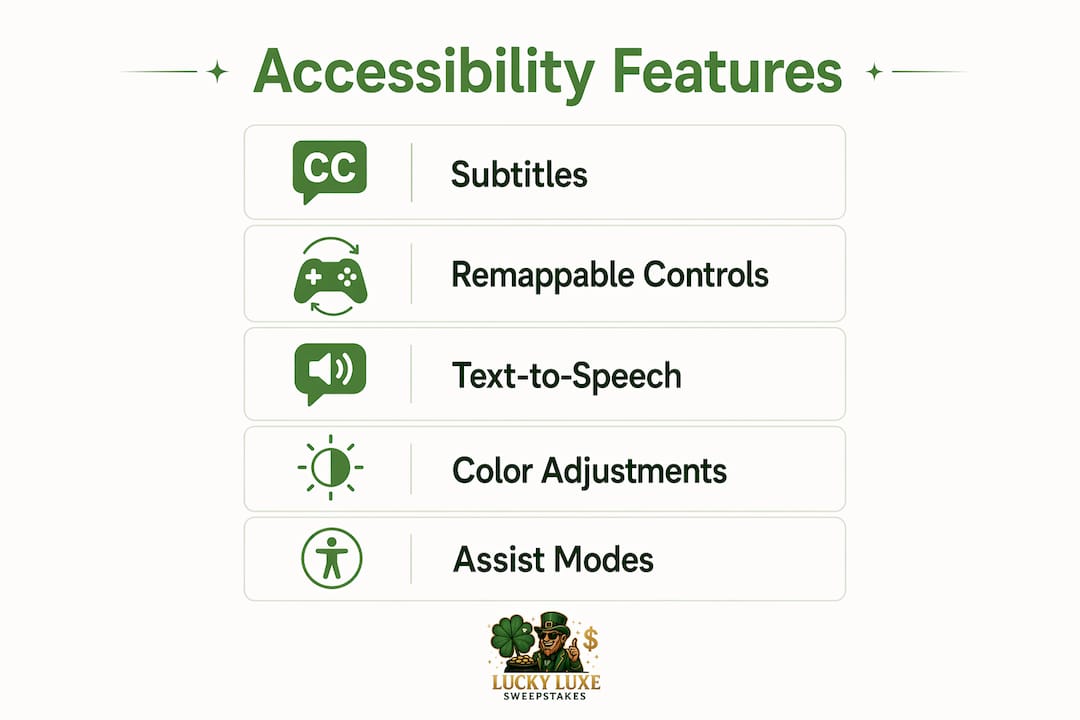
Games like Prince of Persia: The Lost Crown show how these features layer together without touching core mechanics. That's the standard worth measuring other titles against.
Pro Tip: On most platforms, accessibility settings live under Settings > Accessibility or Settings > Display & Sound. If you don't see a dedicated tab, check the audio and video submenus separately.
Why web and platform accessibility matter before you ever load a game
Getting into a game requires passing through a platform first: sign-up forms, account dashboards, payment pages, and in-browser game launchers. Web-based gaming platforms must follow WCAG principles so those interfaces don't block players before gameplay even begins.
Common web-layer problems include:
- Sign-up forms with no visible labels, so screen readers announce only "edit field" with no context
- Keyboard traps that strand users who navigate by Tab key and can't exit a modal
- Poor color contrast on buttons and error messages (WCAG requires a minimum 4.5:1 ratio for normal text)
- Missing focus indicators, making keyboard navigation invisible
- CAPTCHA challenges with no audio alternative
You can run a quick self-test in under two minutes. Press Tab through the sign-up page and confirm focus moves in a logical order. Zoom your browser to 200% and check whether text reflows without horizontal scrolling. Try the form with a screen reader like NVDA (Windows) or VoiceOver (Mac/iOS). On mobile, verify the platform respects OS-level features like TalkBack or Switch Control rather than overriding system accessibility settings. The Luckyluxe blog covers navigating an online gaming platform step by step if you want a walkthrough.
Common barriers by impairment type and how to fix them
| Impairment | Typical barriers | Concrete fixes |
|---|---|---|
| Visual | Low contrast, tiny text, color-only cues | Adjustable font size and color, screen-reader labels, high-contrast mode |
| Hearing | Audio-only cues, voice-only chat | Subtitles, visual audio indicators, ping systems, quick-chat wheels |
| Motor | Fixed key bindings, fast-twitch timing windows | Remappable controls, toggle/hold options, adjustable input timing |
| Cognitive | Complex UI, rapid information overload | HUD density controls, simplified tutorials, pause-anywhere options |
For players who are blind or have low vision, all game text should be adjustable in font, color, and background, and compatible with screen readers. That's a baseline, not a bonus. For deaf and hard-of-hearing players, visual audio indicators paired with subtitles remove the need to rely on sound at all.
In online multiplayer, ping systems and quick-chat wheels let players coordinate without voice chat, which matters for players with speech impairments, hearing loss, or anyone in a noisy environment. Layering solutions across sensory channels is what separates genuinely accessible design from a token subtitle toggle.
Pro Tip: Competitive fairness and accessibility aren't at odds. Opt-in assist modes with separate matchmaking keep the playing field level while keeping the game open to everyone.
What standards and resources should you actually trust?
The field has several authoritative references. Here's what each one gives you:
- IGDA accessibility whitepaper: The canonical definition of game accessibility and a framework for thinking about barriers across impairment types.
- Game Accessibility Guidelines (GAAG): A living reference organized into basic, intermediate, and advanced fixes. Developers use it as a checklist; players can use it to understand what "good" looks like.
- WCAG (Web Content Accessibility Guidelines): The web standard that governs platform interfaces, sign-up flows, and in-browser games.
- Accessible Games Initiative: Provides storefront tags developers can apply so players can filter for features like full keyboard support or customizable subtitles before purchasing.
- AbleGamers and the American Foundation for the Blind (AFB): Both publish practical guidance for players and developers, with AFB's AccessWorld covering video game accessibility in depth.
Industry adoption increasingly relies on GAAG and the Accessible Games Initiative to standardize how features are communicated, which means storefront tags are becoming a reliable signal rather than a marketing claim.
How to evaluate a game's accessibility before you play
Run through these steps on any storefront page, demo, or settings menu:
- Check storefront tags. Look for Accessible Games Initiative labels or developer-listed features. Tags like "full keyboard support," "customizable subtitles," and "colorblind modes" are the fastest signal.
- Try Tab navigation on the platform. If the sign-up or game-launch page traps your focus or skips elements, that's a red flag for the whole platform's accessibility commitment.
- Watch a gameplay video with subtitles on. Confirm they're readable, timed correctly, and include speaker labels.
- Open the demo's settings menu. Verify remappable controls exist and that HUD scaling is present.
- Test communication tools. Confirm the game has a ping system or quick-chat option so you're not locked into voice chat.
- Read the developer's accessibility notes. Patch logs that mention accessibility updates signal an ongoing commitment, not a one-time checkbox.
If you can't find answers on the storefront, ask the support team directly: "Does the game support remappable controls?" and "Are subtitles customizable?" are two questions that reveal a lot quickly. The Luckyluxe platform usability checklist covers additional platform-level checks worth running alongside this one.
Pro Tip: Save your custom control layout and accessibility settings as a named profile if the game allows it. Sharing that profile with friends who have similar needs saves them the setup time.
Why accessibility benefits every player, not just players with disabilities
A few persistent myths are worth addressing directly:
- "Accessibility features are cheating." Designers are clear: providing information through multiple channels (sound and visuals together) doesn't give anyone an unfair advantage. It removes exclusion.
- "Subtitles are only for deaf players." Subtitles help anyone gaming in a noisy room, watching a stream, or learning a second language.
- "Remappable controls are a niche feature." Left-handed players, players with small hands, and anyone who prefers a non-default layout all use them.
From a developer standpoint, inclusive design improves the experience for everyone. Features built for players with disabilities routinely benefit players in low-light rooms, on low-end devices, or with temporary injuries. The market case is straightforward too: a 2010 study estimated that 9% of U.S. players experience a reduced gaming experience due to impairment, and roughly 2% cannot play certain games at all. Accessibility built into the design from day one costs far less than retrofitting it after launch.
How Luckyluxe approaches online game accessibility
Luckyluxe builds its platform around a user-friendly interface designed to keep the path from sign-up to gameplay as clear as possible. The platform's settings and support resources give players direct access to customization options, and the referral and help channels are structured to be reachable without navigating complex menus.
For step-by-step guidance, the Luckyluxe blog covers the practical side of platform accessibility in detail:
- How to use platform accessibility features in gaming
- Player account settings worth customizing
- How to access support resources while gaming
These resources reflect Luckyluxe's commitment to making its platform navigable for players across a range of needs, from display preferences to support access.
Key Takeaways
Online game accessibility combines in-game features, WCAG-compliant platform design, and impairment-specific solutions to let every player participate fully.
| Point | Details |
|---|---|
| Core definition | IGDA defines accessibility as removing barriers so players with sensory, motor, or cognitive limits can play. |
| Features to check | Look for remappable controls, customizable subtitles, colorblind presets, and visual audio indicators. |
| Web layer matters | WCAG principles apply to sign-up forms and menus; a keyboard trap or missing label can block players before gameplay. |
| Use trusted standards | GAAG, WCAG, and Accessible Games Initiative tags are the most reliable signals of genuine accessibility. |
| Luckyluxe resources | Luckyluxe's blog and platform settings offer step-by-step accessibility guidance for players on the platform. |
Accessibility deserves more than a checkbox
The conversation around game accessibility often stops at "does it have subtitles?" That's the wrong question. The real measure is whether a player can get from sign-up to an hour of gameplay without hitting a wall that has nothing to do with skill.
What gets missed most often is the web layer. Developers spend real effort on in-game settings and then ship a sign-up flow that fails basic keyboard navigation. A player using a switch controller or screen reader hits that wall before they ever see the game. WCAG compliance on platform interfaces isn't optional polish; it's the door.
There's also a design philosophy worth pushing back on: accessibility and approachability are not the same thing. Approachability simplifies systems to make a game easier to learn. Accessibility supplies layered tools to remove functional barriers without changing the game's core challenge. Conflating them leads to developers who think adding an easy mode covers their accessibility obligations. It doesn't. A player who can't read the menu text isn't asking for a lower difficulty setting.
The good news is that the tools exist. GAAG, WCAG, and the Accessible Games Initiative give developers a clear path. Players now have enough vocabulary to ask the right questions before they buy. Run the checklist. Ask the support team. Check the patch notes. The platforms that take this seriously will tell you so in their documentation.
Luckyluxe makes accessible online play easy to find
Luckyluxe offers a platform built around clarity: a clean interface, straightforward account settings, and support resources you can reach without digging through nested menus. Whether you're adjusting display preferences, checking game options, or looking for help, the path is short.
The platform's slots, fishing, and arcade games are paired with a settings structure designed to keep customization accessible from the start. If you want to see what that looks like in practice, the Luckyluxe accessibility and platform guides walk you through every major setting. Head to Luckyluxe to explore the game library and check the platform's accessibility support resources for yourself.
Useful sources for further reading
- IGDA Game Accessibility Whitepaper: The foundational definition and framework; use it to understand how barriers are categorized.
- Game Accessibility Guidelines (GAAG): A full checklist of basic, intermediate, and advanced fixes; the primary developer reference.
- Accessible Games Initiative: Storefront tagging system; use it to filter for accessible titles before you buy.
- American Foundation for the Blind — AccessWorld: In-depth coverage of visual accessibility in games; practical for both players and developers.
- Game Accessibility — Wikipedia: A broad survey of accessibility categories, legal context (CVAA, Section 508), and research history.
- Game Developer — What Does Accessibility Mean in Game Design: Covers the accessibility-vs-approachability distinction and the multi-channel design principle.