

Gaming accessibility features are customizable options that support visual, auditory, motor, and cognitive needs, letting players with disabilities engage with games fully on their own terms. Knowing how to use platform accessibility features in gaming is no longer optional for the industry. Approximately 46 million gamers in the U.S. live with disabilities, making these tools essential for a massive portion of the gaming population. Platforms and titles now ship with dedicated accessibility menus, and the gap between what's available and what players actually configure remains wide. This guide closes that gap.
How to use platform accessibility features in gaming effectively
The first step is understanding that accessibility settings live in two places: inside the game itself and inside your platform's system settings. Most players check only one. System-level settings like Xbox Accessibility Settings or Windows Game Bar provide foundational adjustments that apply across every game you play. In-game menus then let you fine-tune for each specific title.
Before touching any menu, confirm your hardware is ready. Adaptive controllers, switch access devices, and compatible input peripherals all require proper connection and driver updates before the software can recognize them. Running outdated firmware is the single most common reason accessibility features fail to register correctly.
Here is what to check before you configure anything:
- System accessibility menu: Open your console or PC system settings first. Xbox, PlayStation, and Windows each have a dedicated accessibility section that overrides game defaults.
- Game and platform updates: Install all pending updates. Developers patch accessibility bugs and add new options in regular updates, so an outdated build may be missing features entirely.
- Adaptive hardware connections: Plug in adaptive controllers or switch devices before launching the game. Many platforms detect hardware on startup and adjust available input options accordingly.
- Companion apps: Tools like Cephable extend control options through voice, facial expressions, and head movement. Download and configure these apps before opening the game.
Pro Tip: Set up your system-level accessibility options once, then treat in-game menus as a layer on top. This saves you from reconfiguring the same settings every time you launch a new title.
How do you set up and customize core accessibility options?
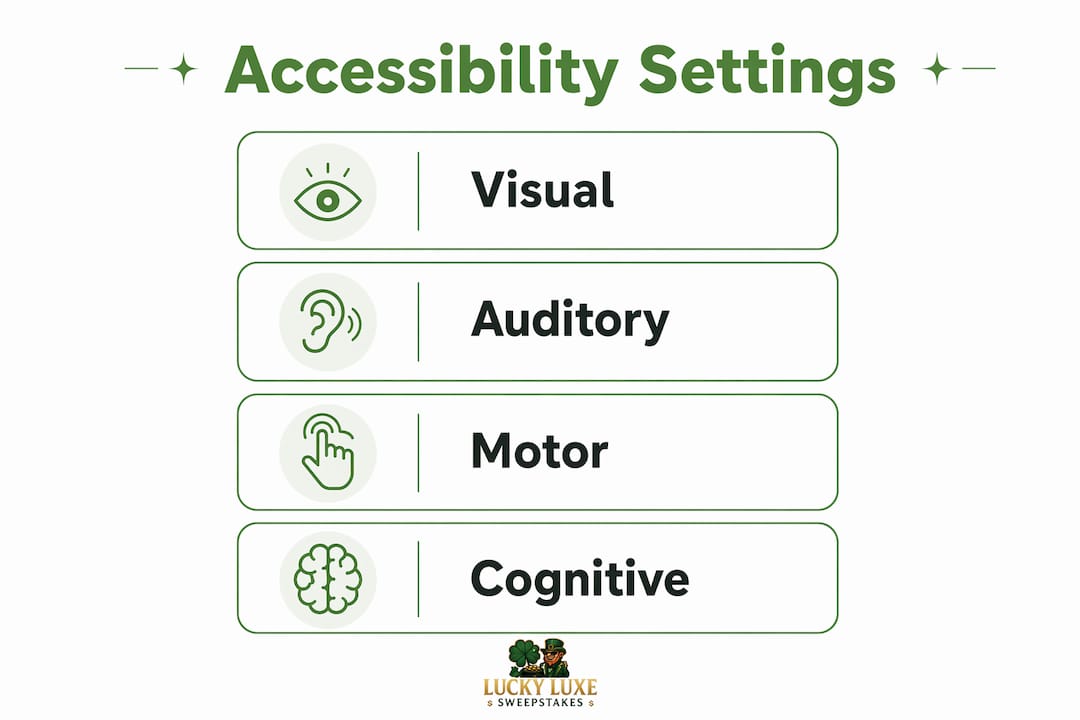
Accessibility settings fall into four categories: visual, auditory, motor, and cognitive. Major games organize their menus this way, and some titles go deep. The Last of Us Part II ships with over 60 individual accessibility settings. Knowing which category addresses your need gets you to the right menu faster.

Visual settings
Colorblind filters, high contrast modes, text size sliders, and screen magnification are the most common visual tools. Colorblind filters typically offer deuteranopia, protanopia, and tritanopia presets. High contrast mode makes UI elements and enemies stand out against backgrounds. Text size adjustments matter most in games with heavy dialogue or inventory screens.
Auditory settings
Subtitles are the baseline, but modern games let you customize font size, background opacity, speaker labels, and caption color. Mono audio combines stereo channels into one, which helps players with hearing in only one ear. Sound cue visualization converts audio alerts into on-screen icons, so you never miss a directional warning.
Motor settings
Button remapping is the most used motor feature across all platforms. Stick sensitivity adjustments reduce the precision required for fine movements. Hold-to-toggle switches convert held inputs into taps, which reduces sustained grip pressure. Combining in-game and system-wide settings gives you the most granular control over input behavior.
Cognitive settings
Adjustable difficulty, extended timers, reduced enemy aggression, and simplified on-screen prompts all fall under cognitive accessibility. These features let players set their own pace without being locked out of story content. Game speed sliders, available in a growing number of titles, let you slow action sequences to a manageable rate.
The table below maps each category to its most practical settings:
| Category | Key settings | Best for |
|---|---|---|
| Visual | Colorblind filters, high contrast, text size | Color vision deficiency, low vision |
| Auditory | Subtitles, mono audio, sound visualization | Hearing loss, single-ear hearing |
| Motor | Button remapping, toggle switches, stick sensitivity | Limited mobility, hand fatigue |
| Cognitive | Difficulty sliders, extended timers, simplified prompts | Processing differences, attention needs |
Pro Tip: After configuring settings in one game, screenshot your setup. When you start a new title, use that screenshot as a reference to replicate your preferred configuration quickly.
How do AI-driven tools expand accessible gaming options?
AI-driven input tools represent the biggest shift in gaming accessibility in years. Cephable enables alternative input through voice commands, facial expressions, and head movement, and was integrated directly into Call of Duty: Black Ops 7 as of april 2026. That kind of native integration signals a broader industry shift toward building these tools into games rather than treating them as external workarounds.
Setting up a companion app like Cephable follows a consistent process across most platforms:
- Download and install the companion app on your PC or console-connected device.
- Calibrate your input method using the app's built-in setup wizard, which maps movements or voice commands to specific controller inputs.
- Test in a low-stakes environment such as a tutorial or single-player mode before using the setup in any timed or competitive context.
- Adjust sensitivity thresholds to reduce false triggers from unintended movements or ambient noise.
Third-party accessibility inputs introduce slight processing delays compared to traditional controllers. That latency is negligible in casual or single-player games but can affect timing in competitive modes. Reserve AI-driven controls for game modes where split-second reaction time is not the deciding factor.
Observation-based profiling takes a different approach entirely. ObservePlay uses multi-stage onboarding to infer a player's accessibility needs automatically, removing the barrier of navigating complex settings menus. This matters most for players who are unfamiliar with accessibility terminology or who find configuration menus difficult to use independently.
"The most effective accessibility strategy is inclusive design from the earliest stages of game development, not features added after launch." — An evolving industry: gaming and accessibility
What mistakes should you avoid when configuring accessibility settings?
The most common mistake is treating in-game settings as the only option. System-level settings override game configurations for broad adjustments like button remapping and zoom, so skipping the system menu means leaving your most powerful tools unused.
Here are the other mistakes worth avoiding:
- Ignoring latency in AI-driven inputs: If your alternative input tool introduces noticeable delay, switch to traditional controls for timing-sensitive sequences and return to AI input for exploration or dialogue.
- Using default subtitle settings: Default subtitles are often small and low-contrast. Customize font size, background color, and speaker labels for genuine readability.
- Skipping software updates: Developers regularly fix accessibility bugs and add new options. An unpatched game may have broken features or missing settings.
- Testing only one game: A configuration that works well in one title may not transfer perfectly to another. Test your setup across at least two or three different games before settling on defaults.
- Treating your setup as permanent: Accessibility customization is an ongoing process. Your needs may change, and new games offer new options. Revisit your settings regularly.
Pro Tip: Keep a simple notes document with your preferred settings for each game. When a game updates and resets your configuration, you can restore everything in under two minutes.
Accessibility features benefit all players, not just those with disabilities. Subtitles help in noisy environments. Button remapping reduces hand fatigue during long sessions. Difficulty toggles make games accessible to language learners still building vocabulary in a game's narrative. Designing for disability consistently produces features that improve the experience for everyone.
Key Takeaways
Effective accessible gaming requires combining system-level settings with in-game options, using AI-driven tools where appropriate, and revisiting your configuration as your needs and games evolve.
| Point | Details |
|---|---|
| Start with system settings | Configure Xbox, PlayStation, or Windows accessibility menus before opening any game. |
| Use all four categories | Visual, auditory, motor, and cognitive settings each address distinct needs. |
| Know AI input limits | Tools like Cephable work best in casual or single-player modes due to slight latency. |
| Update regularly | Developers add and fix accessibility features in patches, so outdated builds miss options. |
| Treat setup as ongoing | Revisit and adjust your configuration as your needs and the games you play change. |
Accessibility is not a checkbox. It is a practice.
I have spent years watching the gaming industry treat accessibility as an afterthought, something bolted on after launch to satisfy feedback. That is changing, but not fast enough. The players who get the most out of accessible gaming today are the ones who stop waiting for the perfect out-of-the-box experience and start building their own.
The single biggest shift in my thinking came from realizing that system-level settings are almost always more powerful than in-game menus. Most players never open the Xbox Accessibility Settings or the Windows accessibility panel. They go straight to the game's options screen and wonder why the experience still feels off. The system menu is where the real control lives.
AI-driven input tools like Cephable are genuinely exciting, but they require patience during setup. The players who give up after one frustrating calibration session miss out on a tool that can fundamentally change what games are playable for them. Spend the time. The payoff is real.
Accessibility customization is not a one-time task. Games update. Your needs shift. A setup that worked perfectly six months ago may need adjustment today. The players who treat their accessibility configuration as a living document, not a finished project, consistently report better experiences over time. Check your gaming platform features regularly and stay current with what new titles and updates make available.
— Skyline
Luckyluxe and accessible gaming entertainment
Luckyluxe is built around the idea that every player deserves a clear, comfortable gaming experience. The platform's support resources are designed to help players with disabilities and accessibility needs find the right games and settings without friction.
Luckyluxe offers slots, fishing games, and arcade titles with a clean interface that keeps navigation straightforward for all players. The platform highlights featured games and promotions regularly, so you spend less time searching and more time playing. A referral program and dedicated support team mean you always have somewhere to turn when you need help. Visit Luckyluxe to explore games and resources built with every player in mind.
FAQ
What are accessibility features in gaming?
Accessibility features in gaming are customizable settings that support players with visual, auditory, motor, and cognitive needs. They include options like colorblind filters, subtitles, button remapping, and adjustable difficulty.
How do I access system-level accessibility settings?
On Xbox, open Settings and select Accessibility. On PlayStation, go to Settings then Accessibility. On Windows, open the Settings app and select Accessibility from the left menu.
Can accessibility features help players without disabilities?
Yes. Subtitles, button remapping, and difficulty toggles are widely used by players in noisy environments, those reducing hand fatigue, and language learners.
What is Cephable and how does it work in gaming?
Cephable is an AI-driven tool that maps voice commands, facial expressions, and head movements to controller inputs. It was integrated into Call of Duty: Black Ops 7 as a native accessibility option in april 2026.
Should I use in-game settings or system settings first?
Start with system settings. System-level configurations override game defaults and apply universally, making them the most efficient starting point before customizing individual titles.