

WebGL usually reads as "not supported" because the browser can't get a working line to your GPU, not because your hardware is dead. The three usual suspects are disabled hardware acceleration, an outdated or blocklisted graphics driver, and a browser setting or extension getting in the way. Run a WebGL test at get.webgl.org and open your browser's GPU diagnostics page right now. Most of the time, that combination tells you exactly which fix to try first.
TL;DR:
- Most WebGL issues stem from disabled hardware acceleration, outdated drivers, or restrictive browser settings, which can often be fixed with quick toggles or updates.
- Running diagnostic tests at get.webgl.org and checking browser GPU reports reveal whether the problem is hardware, driver, or policy related, guiding the appropriate fix.
- Updating GPU drivers directly from manufacturer sites, ensuring system updates, and configuring power settings are key steps to resolve persistent WebGL failures.
- Browser-specific settings, experimental features, and flags should be used carefully to diagnose issues, but permanent fixes require driver updates or OS upgrades.
- WebGL support heavily depends on OS versions and device hardware, with older GPUs often limited to WebGL1, making hardware upgrades or device switching necessary for WebGL2 features.
Table of Contents
- How to Confirm WebGL Is Actually Failing
- Actionable Browser Fixes: Chrome, Edge, Firefox, Safari, and Mobile
- Update or Reinstall Your GPU Drivers the Right Way
- Flags, Extensions, and Managed Devices: Proceed Carefully
- Lucky Luxe Support: Getting Back Into Your Games Fast
- Checking Your Operating System's WebGL Compatibility
- When Your Graphics Hardware Is Genuinely the Limit
- Alternative Rendering Options When WebGL Won't Load
- Security and Privacy Considerations With WebGL Enabled
- Software Fix or Hardware Upgrade? A Quick Gut Check
- Quick Note on Lucky Luxe Support and Alternate Game Modes
- Authoritative Tools for Verifying WebGL Support
- Sources
- FAQ
How to Confirm WebGL Is Actually Failing
Don't guess. Run the test, read the diagnostics, and you'll know within two minutes whether this is a quick toggle or something deeper.
Start with WebGL or webglreport.com. If get.webgl.org renders a spinning cube, your browser has a working WebGL context and the problem is likely specific to one site or game. If it fails, your browser can't create a GPU-backed WebGL context at all, and that points to drivers, settings, or a policy block.
From there, pull up your browser's own graphics report:
- Chrome or Edge: open
chrome://gpuoredge://gpuand check "Graphics Feature Status." WebGL will show as Hardware accelerated, Software only, or Disabled, and the Problems Detected section spells out the blocklist reason if one applies. - Firefox: open
about:support, scroll to Graphics, and note the WebGL renderer line along with any blocklist warnings. - Any browser: take a screenshot or copy the raw text of these pages. If you end up contacting support later, this saves everyone time.
Testing a second browser at this stage is worth doing immediately. If WebGL works fine somewhere else, the issue is browser-specific. If it fails everywhere, the problem lives deeper in your driver or OS.
Actionable Browser Fixes: Chrome, Edge, Firefox, Safari, and Mobile
Each browser handles WebGL a little differently, and the fix usually lives in a settings menu you've never opened before.
Chrome and Edge share the same Chromium engine, so the fix is nearly identical in both:
- Go to Settings → System (Chrome) or Settings → System and Performance (Edge).
- Turn on "Use hardware acceleration when available" if it's off, then relaunch the browser.
- Reopen
chrome://gpuand confirm WebGL now reads "Hardware accelerated." - If it's still blocked, check whether your GPU driver is on the blocklist. Chromium browsers can fall back to SwiftShader software rendering, but that path is increasingly restricted and isn't a real fix for anything graphics-intensive, including most browser games.
There's a flag called #ignore-gpu-blocklist in chrome://flags that forces WebGL on even when your driver is flagged. It works, but it exists because that driver caused instability for someone. Treat it as a diagnostic step, not a permanent setting.
Firefox takes a slightly different path. Open Settings → General → Performance, uncheck "Use recommended performance settings," and manually enable hardware acceleration. Then check about:support again to confirm the change registered. Firefox also has a webgl.force-enabled flag in about:config, but Mozilla's own support documentation flags forcing WebGL this way as risky since it bypasses the same stability checks the blocklist exists to enforce.
Safari ties WebGL support tightly to your macOS or iOS version, so update the operating system first. For WebGL2 specifically, open Safari's Develop menu, go to Experimental Features, and enable the WebGL2 option if your version still gates it behind a flag.
Mobile browsers vary more than people expect. iOS Safari and Chrome on iOS both use Apple's WebKit engine underneath, so a WebGL failure on one usually means the other fails too, but a system update can fix both at once. Android's browser landscape is messier since GPU drivers differ by manufacturer, so testing a second browser (Chrome versus Firefox versus Samsung Internet) is genuinely useful there.
Pro Tip: Following the sequence of test, then enable acceleration, then update driver, then retest in a fresh profile clears the large majority of WebGL failures without needing any advanced flags at all.
Update or Reinstall Your GPU Drivers the Right Way
Windows Device Manager drivers are often months behind what the manufacturer actually ships, and that gap is where most WebGL blocklist problems live.
Go straight to the source instead:
- NVIDIA users should grab drivers from NVIDIA's official download page rather than relying on Windows Update.
- AMD maintains its own driver hub with GPU-specific packages.
- Intel integrated graphics need drivers from Intel's support site, or from your laptop manufacturer if it customizes the driver package.
- OEM support pages (Dell, HP, Lenovo, ASUS) sometimes ship a modified driver version that's more stable on that specific model than the generic vendor build.
Browsers maintain blocklists specifically for GPU drivers known to cause crashes, and installing the current official driver is the most reliable way to get off that list. If a fresh driver actually makes things worse, rolling back to the previous version through the vendor's own installer usually resolves it.
Laptops with two GPUs (an integrated Intel or AMD chip plus a discrete NVIDIA or AMD card) create a separate problem: the browser might be running on the weaker chip. Plug in to AC power, switch to a high-performance power plan, and set your browser to "High performance" in Windows' Graphics settings or your GPU vendor's control panel.
On macOS, install the latest system update rather than looking for a standalone GPU driver. Linux users should know that open source Mesa drivers and proprietary NVIDIA drivers behave differently with WebGL, and switching between them is sometimes the fix.
Flags, Extensions, and Managed Devices: Proceed Carefully
Some causes of a WebGL failure have nothing to do with your GPU at all, and they need a different kind of troubleshooting.
- Override flags exist, but they're a diagnostic tool, not a fix.
chrome://flags/#ignore-gpu-blocklistand Firefox'swebgl.force-enabledboth force WebGL past a safety check. Use them to confirm the blocklist is the cause, then go update your driver instead of leaving the override on permanently. - Test a fresh profile or Incognito window before blaming your hardware. Privacy and fingerprint-resistance extensions frequently block or randomize WebGL output specifically because WebGL can be used to fingerprint a device. If WebGL works in a clean profile, an extension is your culprit.
- Virtual machines and remote desktop sessions rarely pass through a real GPU. If you're troubleshooting inside a VM or RDP session, test on the physical host machine before assuming your graphics hardware is broken.
- Managed devices (work laptops, school Chromebooks) often disable WebGL on purpose. Check
chrome://policyoredge://policyfor a GPU-related restriction. On IT-managed devices, the fix is contacting IT rather than toggling unsafe overrides, since policy-enforced blocks won't respond to flags anyway.
One more thing worth checking: experimental rendering paths tied to ANGLE or Vulkan backends occasionally break WebGL after a browser update. Resetting flags to their defaults in chrome://flags or about:config has fixed this for plenty of users without touching drivers at all.
Lucky Luxe Support: Getting Back Into Your Games Fast
If a WebGL error is blocking one of your games, don't spend an hour guessing. Gather a short diagnostic packet first, then check for a quick workaround while you wait on support.
Before reaching out, collect:
- Your browser name and version
- The relevant line from
chrome://gpuor Firefox'sabout:support - A screenshot of the get.webgl.org test result
- Your operating system and GPU model
While you wait, try switching to another supported browser on the same device, since that alone resolves plenty of blocklist and extension issues. If a game offers a lower-graphics mode or a non-WebGL fallback page, that's worth trying too. Lucky Luxe's support resources cover how to gather diagnostics and reach a support team efficiently, so you're not stuck sending back-and-forth messages over missing details.
Checking Your Operating System's WebGL Compatibility
Your operating system version matters more than most people assume, because WebGL support rides on graphics APIs the OS itself has to expose to the browser.
On Windows, WebGL2 leans on DirectX components that get updated through regular Windows Update cycles. Running Windows without recent updates for months at a stretch is a quiet, common cause of WebGL2 failing while WebGL1 still works fine, since older DirectX libraries don't support every WebGL2 extension.
macOS ties WebGL closely to Metal, Apple's graphics API, and Safari's WebGL implementation improves with each macOS release. If you're several versions behind, updating macOS is frequently a bigger fix than anything you'll find in Safari's own settings.
Linux users face the most variation. WebGL support depends heavily on whether you're running open source Mesa drivers or a vendor's proprietary driver, and on how current your kernel and X11 or Wayland setup is. A distribution that hasn't been updated in a year can lag behind current WebGL2 requirements even with correct hardware.
Across all three systems, the pattern holds: check for pending OS updates before assuming your hardware is the problem. A stale operating system quietly breaks graphics APIs in ways that look identical to a driver issue, and it's an easy thing to overlook when you're focused on browser settings instead.
When Your Graphics Hardware Is Genuinely the Limit
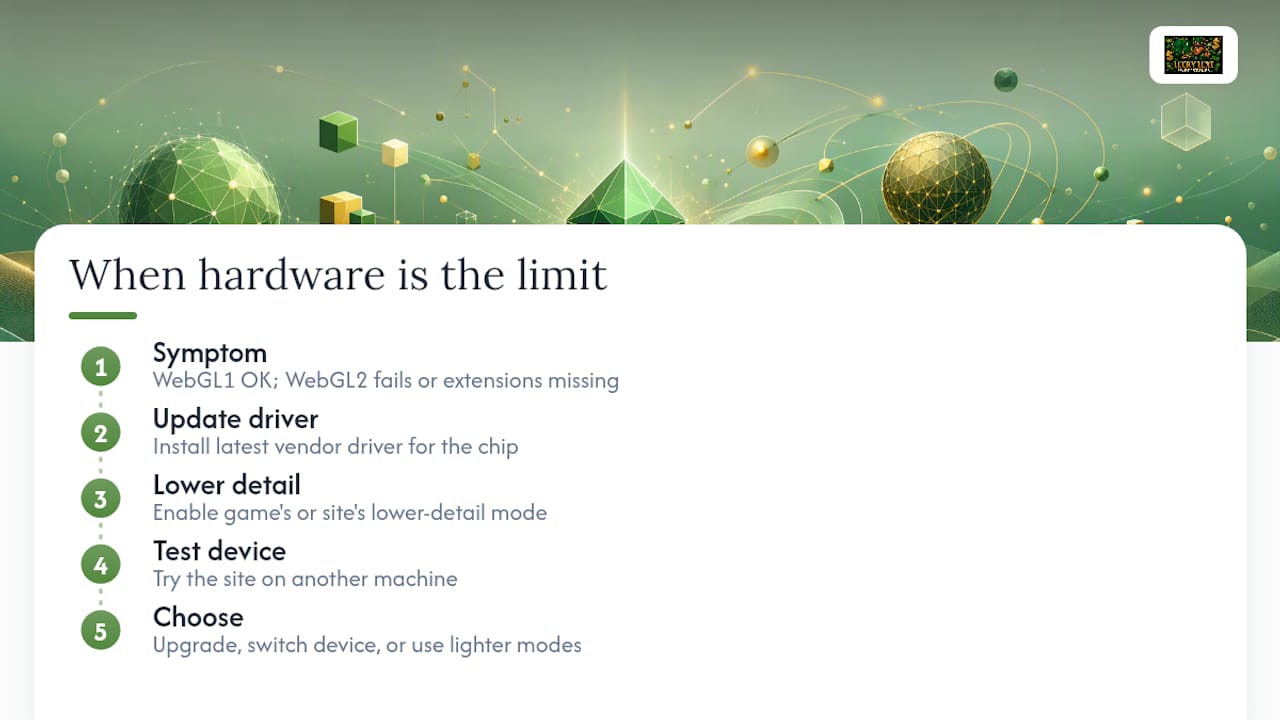
Sometimes the fix really is that your GPU is too old, and no amount of driver updates or flag toggling changes that.
A clear tell: WebGL1 works fine, but WebGL2 consistently fails, or a test site reports missing extensions your GPU simply doesn't have. That's a hardware ceiling, not a software bug. Integrated graphics chips from several generations back, especially older Intel HD Graphics models, often support WebGL1 but were never built with the newer extensions WebGL2 relies on.
Before writing off the hardware entirely, run through a few checks. Confirm you're on the latest driver version your vendor offers for that specific chip, since older integrated GPUs sometimes get one last compatibility patch. Check whether the game or site has a lower-detail mode that avoids the missing extensions altogether. And test on a second device if one's available, just to confirm the limitation is really about the GPU and not a setting you missed.
If none of that moves the needle, you're choosing between three honest options: upgrade the GPU or the whole machine, switch to a different device for graphics-heavy games, or stick to lighter game modes that don't lean on WebGL2's newer features. None of those are failures on your part. Consumer GPUs from six or seven years ago were never built for today's rendering demands, and browsers have gotten stricter about what hardware they'll trust with a GPU-backed context.
Alternative Rendering Options When WebGL Won't Load
WebGL isn't the only way a browser can draw graphics, and knowing the alternatives helps you understand what a game or site might fall back to.
Canvas 2D is the older, simpler graphics API that doesn't need GPU acceleration the same way WebGL does. Plenty of simpler browser games use Canvas 2D exclusively and never touch WebGL at all, which is why some games keep working fine even when WebGL is completely broken on your system.
Software rendering through something like SwiftShader lets a browser fake a GPU context using your CPU instead. It technically produces WebGL output, but slowly, and it's increasingly restricted by browser vendors specifically because it performs too poorly for real use and creates a misleading sense that WebGL is "working."
WebGPU is the newer graphics API meant to eventually take over the harder jobs WebGL was never quite built for. It's landed in Chrome and Edge and is rolling out elsewhere, but plenty of current games and tools still target WebGL specifically, so a game that says it needs WebGL usually can't just substitute WebGPU without the developer rebuilding it.
Practically speaking, if a game offers a "lite" or low-graphics mode, that's often a Canvas 2D fallback the developer built for exactly this situation. Look for that option before assuming the game is simply unplayable on your setup.
Security and Privacy Considerations With WebGL Enabled
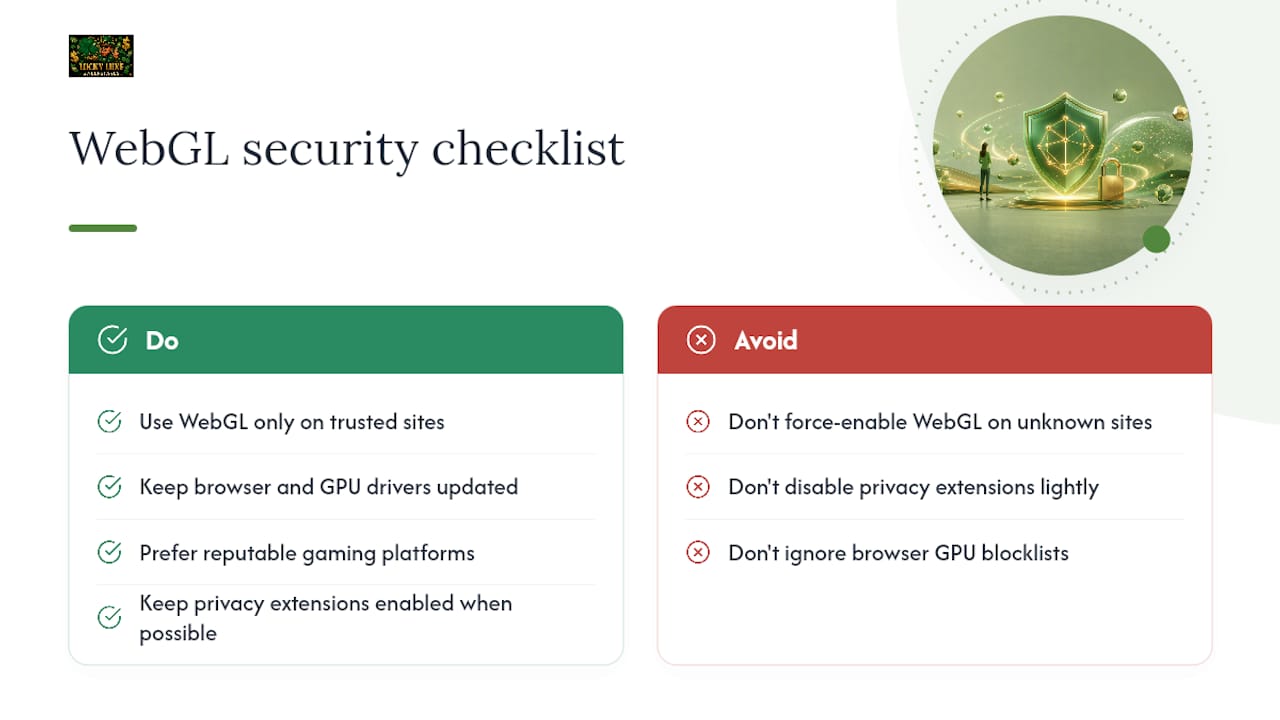
WebGL gives a website deep access to how your GPU renders graphics, and that access has a genuine privacy cost most people never think about.
The technical details of your GPU rendering, quirks in how it draws shadows, handles anti-aliasing, or reports its extensions, form what's called a fingerprint. Sites can use that fingerprint to identify your specific device across visits, even without cookies. That's precisely why privacy-focused browser extensions and settings sometimes block or randomize WebGL output, and it's why disabling one of those extensions to fix a game can feel like a tradeoff.
There's also a security angle worth knowing. WebGL runs code close to your GPU driver, and driver-level bugs have occasionally been exploited through crafted WebGL content. That's the actual reason browser vendors maintain those GPU blocklists in the first place: a known-unstable driver combined with untrusted WebGL code from a random website is a real risk, not just a theoretical one.
None of this means you should avoid enabling WebGL. Reputable gaming platforms and mainstream browsers have hardened their WebGL implementations substantially over the past several years. But it's worth understanding why your browser sometimes resists turning WebGL on by default, and why forcing it past a safety flag on an unfamiliar site carries more risk than doing the same on a platform you already trust.
Software Fix or Hardware Upgrade? A Quick Gut Check
If WebGL1 runs but WebGL2 fails, or your test reports missing extensions, that's your GPU aging out, not a settings problem. From there you've got three honest paths: upgrade the hardware, switch to a different device, or stick with lighter game modes. Run the checklist above before spending money. Most WebGL failures never needed new hardware at all.
Quick Note on Lucky Luxe Support and Alternate Game Modes
If a WebGL error is keeping you out of a game you'd normally be playing, Lucky Luxe is built to get you back in with as little friction as possible. Slots, fish tables, and arcade games on the platform run through a browser interface designed for a wide range of hardware, not just top-tier GPUs, so a driver hiccup on your end doesn't have to mean a lost session.
Before opening a support ticket, run through the diagnostics covered above, your chrome://gpu reading, a WebGL test screenshot, your OS and GPU model, since sending that upfront gets you a faster answer than a back-and-forth over what's actually going on. If one game mode is giving your setup trouble, check whether a lighter alternative is available while you sort out drivers on your own time; Lucky Luxe's platform navigation guide walks through finding those options. Head to the Lucky Luxe homepage to see current games and get started, or reach out through support with your diagnostics ready if something still won't load.
Authoritative Tools for Verifying WebGL Support
- Get renders a test cube to confirm whether your browser has a working WebGL context.
- Khronos WebGL wiki documents the standard itself and how browser fallbacks like SwiftShader work.
chrome://gpu,edge://gpu, and Firefox'sabout:supportshow your browser's live graphics status.- NVIDIA, AMD, and Intel driver pages are the most reliable source for current, non-blocklisted GPU drivers.
Sources
- WebGL
- Upgrade graphics drivers & use hardware acceleration (Firefox Support)
- WebGL Not Working? Fix Chrome, Edge, Firefox, and Safari | TYB
FAQ
How Do I Enable WebGL in My Browser?
Turn on hardware acceleration in your browser's settings (Chrome and Edge call it "Use hardware acceleration when available"; Firefox has it under Performance settings), then relaunch the browser. If it's still disabled after that, update your GPU driver directly from NVIDIA, AMD, or Intel, since an outdated driver on the blocklist is a common cause.
How Do I Enable WebGL in Chrome Specifically?
Go to Chrome Settings → System, turn on hardware acceleration, and relaunch the browser. Then open chrome://gpu and confirm WebGL shows as "Hardware accelerated" rather than "Software only" or "Disabled," since that page also lists the specific reason if something is still blocking it.
Does WebGL Work on iPhone Safari?
Yes, modern iOS Safari supports WebGL and WebGL2, but support depends on running a current iOS version. If a WebGL game fails on your iPhone, update iOS first, and enable WebGL2 manually under Safari's Develop → Experimental Features menu if it's still gated on your version.
How Do I Check if WebGL Is Supported on My Device?
Visit get.webgl.org or webglreport.com. A rendered spinning cube means WebGL works; a failure message means your browser can't create a GPU-backed context, and you should check chrome://gpu or about:support next for the specific reason.
Can I Still Play Lucky Luxe Games if WebGL Fails?
Lucky Luxe's games run through the browser interface, so getting WebGL working through the steps above is the most direct path back in. If you're stuck, gather your browser and GPU diagnostics and reach out through Lucky Luxe's support resources for a faster fix.