

Updating your gaming account profile settings is the fastest way to personalize your identity and protect your personal information online. Profile settings management, the industry term for this process, covers everything from your display name and profile picture to your contact email and notification preferences. Platforms like Xbox, Steam, and Activision each handle these changes differently, so knowing the right steps saves you time and prevents costly mistakes. This guide walks you through every major setting you can change, the exact steps for each platform, and the security practices that keep your account safe.
What profile settings can gamers update on their accounts?
Gaming platforms generally separate permanent account names from changeable display names. Your login ID or account name is fixed and tied to your purchase history and authentication. Your display name, Gamertag, or profile name is the public-facing identity that other players see, and you can update it freely on most platforms.
Here are the main profile elements you can typically edit:
- Display name or Gamertag: The name other players see in lobbies, leaderboards, and friend lists. Most platforms let you change this at any time, though some charge a fee after the first change.
- Profile picture or gamerpic: Your visual identity in the game and on platform menus. Some platforms restrict custom uploads to console or web portals only.
- Contact email and phone number: The address tied to account recovery, security alerts, and promotional messages.
- Privacy settings: Controls over who sees your activity, friends list, and real name.
- Notification preferences: Opt-in or opt-out settings for emails and texts about game events, offers, and security alerts.
One fact that surprises many gamers: display name changes do not affect your friends list, achievements, or saved game progress. Your account data stays intact. The change is purely cosmetic and social.
Pro Tip: Before you commit to a new display name, write down three or four options. Platforms enforce uniqueness, so your first choice may already be taken.
Display names must be unique and comply with community standards on every major platform. If your preferred name is taken, you will need to add numbers, underscores, or creative suffixes to find an available option.
How do you update your Gamertag or display name step by step?
The process differs by platform, but the core steps follow a predictable pattern: log in, find your profile settings, enter the new name, and confirm. The table below shows the key differences across three major platforms.

| Platform | Where to change | Cost | Login name changeable? |
|---|---|---|---|
| Xbox | Console settings or Xbox.com | First change free, then ~$9.99 | No |
| Steam | Steam profile page | Free, anytime | No |
| Activision | Activision account portal | Free | No |
Changing your Gamertag on Xbox
- Press the Xbox button on your controller to open the guide.
- Select your profile picture at the top left.
- Choose My profile, then Customize profile.
- Select Change Gamertag and type your new name.
- Review the preview and confirm. Xbox shows you whether the name is available before you commit.
The first Gamertag change is free. Every change after that costs approximately $9.99 USD. That fee exists to discourage impersonation and name squatting, so treat your first free change carefully.
Changing your display name on Steam
- Open the Steam client and click your username at the top right.
- Select Profile from the dropdown menu.
- Click Edit Profile on your profile page.
- Update the Profile Name field with your new display name.
- Scroll down and click Save.
Steam lets you change your profile name as often as you want at no cost. Your account login name, however, is permanent and cannot be changed. This distinction matters if you ever need to recover your account.
Updating your display name on Activision
- Log in at Activision.com and go to Account Management.
- Select Basic Info under your profile settings.
- Click the edit icon next to your display name.
- Enter your new name and save the change.
Activision also requires identity verification for email changes. A one-time code is sent to your current email address before any contact information update goes through. This step protects you from unauthorized changes.
How to update contact information and manage notification preferences securely
Your contact email is the most critical field in your entire gaming profile. It controls account recovery, two-factor authentication, and every security alert the platform sends you. Getting this wrong can lock you out permanently.
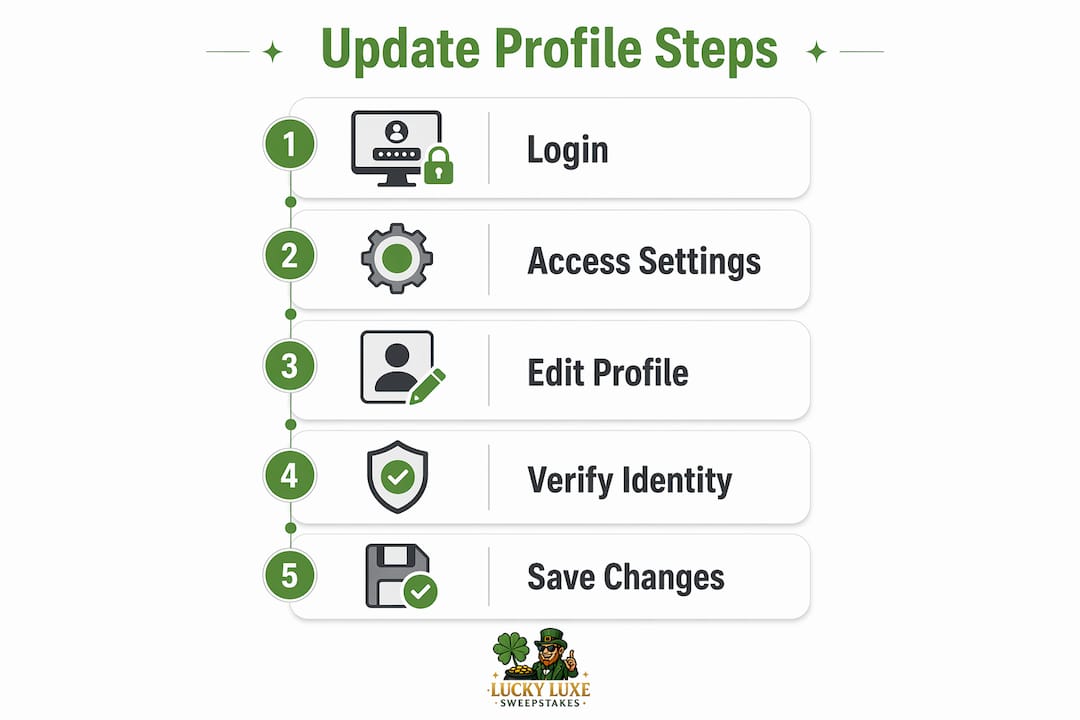
The single most important rule: avoid using work or .edu email addresses for gaming accounts. Those addresses are managed by your employer or school, not by you. If your access is revoked, you lose the ability to recover your gaming account entirely.
Follow these steps when updating your contact email:
- Log in to your platform account on the official website.
- Navigate to Account Settings or Basic Info in your profile.
- Click the edit option next to your current email address.
- Enter your new email and confirm it.
- Check your current inbox for a one-time verification code and enter it to authorize the change.
Verification processes protect gamers from unauthorized profile changes. The code requirement means that even if someone knows your password, they cannot change your email without access to your current inbox.
Pro Tip: Add a backup phone number to your account at the same time you update your email. Two recovery options are always better than one.
Contact preferences let you control which emails and texts you receive from the platform. You can opt in for security alerts, game event announcements, promotional offers, and giveaways. Security alert emails should always stay enabled. They are your first warning if someone tries to access your account without permission. For a deeper look at secure login practices, keeping your contact info current is the foundation.
Tips and common mistakes to avoid when customizing your gaming profile
Profile customization is straightforward, but a few common errors cause real problems. Knowing them in advance saves you frustration and, in some cases, prevents account lockouts.
- Check name availability before you get attached. Type your preferred name into the platform's name checker before you finalize anything. If it is taken, have backup options ready.
- Read the community standards. Platforms reject names that contain offensive language, impersonate other users, or violate trademark rules. A rejected name wastes your one free change on Xbox.
- Do not expect instant results. Profile picture and name changes can take up to 48 hours to propagate fully across all linked consoles and services. If your new Gamertag does not appear immediately on a friend's screen, wait before contacting support.
- Use the right interface for custom images. Some platforms restrict custom gamerpic uploads to consoles or web portals. The desktop app may only offer pre-made avatar options. If you want a custom photo, log in through the console or the official website instead.
- Keep backup verification options current. An outdated phone number or a closed email address blocks account recovery. Review your backup options every six months.
"Your display name is your gaming identity. Change it thoughtfully, keep your contact info accurate, and your account stays both personal and protected."
For more on account settings worth customizing, the same principles apply across entertainment platforms of all types.
Key takeaways
Updating your gaming account profile settings protects your account security and refreshes your identity without affecting your game progress, achievements, or friends list.
| Point | Details |
|---|---|
| Display name vs. login name | Your display name is changeable; your account login name is permanent on most platforms. |
| Name change costs | Xbox gives one free Gamertag change; each additional change costs approximately $9.99 USD. |
| Verification for email changes | Platforms send a one-time code to your current email before authorizing any contact info update. |
| Propagation delay | Name and profile picture changes can take up to 48 hours to appear across all devices and services. |
| Email address choice | Never use work or .edu emails for gaming accounts; losing access to those addresses locks you out. |
Profile customization is more than a cosmetic choice
Most gamers treat a display name change as a quick cosmetic fix. I have seen that mindset cause real problems. The moment you stop thinking about profile settings as purely visual, your approach to gaming account management changes for the better.
The contact email field is the one setting that deserves the most attention. I have spoken with gamers who lost years of progress and purchases because they registered with a school email that expired after graduation. The game data was fine. The account was inaccessible. That is a painful and entirely avoidable outcome.
On the personalization side, I think gamers underestimate how much a well-chosen display name contributes to their social experience. Your Gamertag is how your community recognizes you. Changing it too frequently creates confusion among friends and teammates. One thoughtful change beats five impulsive ones.
The verification steps platforms require for email changes are not bureaucratic friction. They are the primary barrier between your account and anyone who wants to take it. Every time a platform sends you a one-time code, that process is working exactly as designed. Treat it as a feature, not an obstacle.
The best approach combines infrequent, deliberate name changes with rigorous contact info hygiene. Update your display name when your gaming identity genuinely evolves. Update your contact email the moment your personal address changes. Those two habits cover the vast majority of data security risks that come from neglected profile settings.
— Skyline
Luckyluxe makes profile management part of the experience
Luckyluxe is built for gamers who want both a great game selection and a well-managed account. The platform offers slots, fishing games, and arcade titles alongside clear tools for updating your profile details, managing notification preferences, and keeping your contact information current.
Luckyluxe supports account verification and security alerts so your personal information stays protected while you play. The player account features are designed to give you full control over your gaming identity without technical headaches. If you ever run into a profile issue, the Luckyluxe support team is available to help you resolve it quickly. Visit Luckyluxe to set up your profile the right way from day one.
FAQ
Can I change my gaming display name without losing progress?
Yes. Display name changes do not affect your game progress, achievements, or friends list on any major platform.
How long does a Gamertag change take to show up everywhere?
Name and profile picture updates can take up to 48 hours to fully propagate across all linked consoles and services.
Is the first Xbox Gamertag change really free?
Yes. The first Gamertag change is free, but each subsequent change costs approximately $9.99 USD.
What happens if I use a work email for my gaming account?
Work and .edu email addresses are managed by your employer or school. If that access is revoked, you lose the ability to recover your gaming account.
Do I need to verify my identity to change my contact email?
Yes. Major platforms send a one-time verification code to your current email address before authorizing any contact information change.