

To sync game progress across devices, sign in to the same account on every device, make sure the game saves to that account (not just to the device), and confirm the save uploaded before you switch. That is the whole idea. The details change from platform to platform, and most lost progress comes from a mismatched sign-in rather than a broken game. At Lucky Luxe, an account-based platform for slots, fishing and arcade games, we like play that follows you from screen to screen, so this guide covers the routine that works almost everywhere and the checks that save you from starting over.
TL;DR
- Progress follows an account, not a device. Use the same account (Apple Account, Google account, or the game's own login) on every device.
- Turn on the platform's cloud save, then check that the last save actually uploaded before you put one device down.
- If progress looks missing, the cause is usually the wrong account, an out-of-date app or OS, or a game that never saved to the cloud in the first place.
- Some cloud copies expire or are limited, so treat them as a convenience and keep your login details safe and recoverable.
- Lucky Luxe offers slots, fishing and arcade games online, with a login troubleshooting guide if a sign-in gets in the way.
Table of Contents
- What "syncing progress" really means
- Step 1: Find out which account your game uses
- Step 2: Sign in with the same account everywhere
- Step 3: Turn on cloud saving and update the app
- Step 4: Confirm the save uploaded before you switch
- Step 5: Open the game on the second device
- What to check when progress is missing or different
- Know the limits before you link or unlink
- Keep your account safe, because it now holds your progress
- Playing on more than one screen
- Perspective
- Try Lucky Luxe on your own devices
- A quick pre-switch checklist
- FAQ
- Sources
What "syncing progress" really means
When a game says your progress is synced, it means your save data lives on a server tied to an account. Each device downloads that data when you log in and uploads changes as you play. Nothing travels from phone to phone directly. If the game stores progress only in the app's own storage on one device, a second device has nothing to download, and deleting the app or losing the phone loses the progress with it.
That is why every reliable method begins with the same two questions:
- Which account holds my progress?
- Is that account the one I am signed in to on this device?
There are three common account types you will meet:
- A platform account, such as an Apple Account or a Google account, which several games on your device share.
- A game publisher account, where the developer gives you one login that works on phone, tablet and PC.
- A platform's own profile, such as a console or PC store profile, which usually syncs only within that ecosystem unless the publisher adds a cross-platform option.
Knowing which of the three your game uses tells you where to look when something goes wrong.
Step 1: Find out which account your game uses
Open the game's settings or profile screen and look for words like "account," "sign in," "link," "cloud save" or "backup." Most games show a small profile name or ID when you are signed in. Write that name down or take a screenshot, because it is the key to everything that follows.
Where it goes wrong: many players tap through a first-launch sign-in prompt, play for weeks as a guest, and only later discover the progress was never attached to an account. If your game offers a "link account" or "connect" option and you have not used it, do that first on the device that has the most progress.
Step 2: Sign in with the same account everywhere
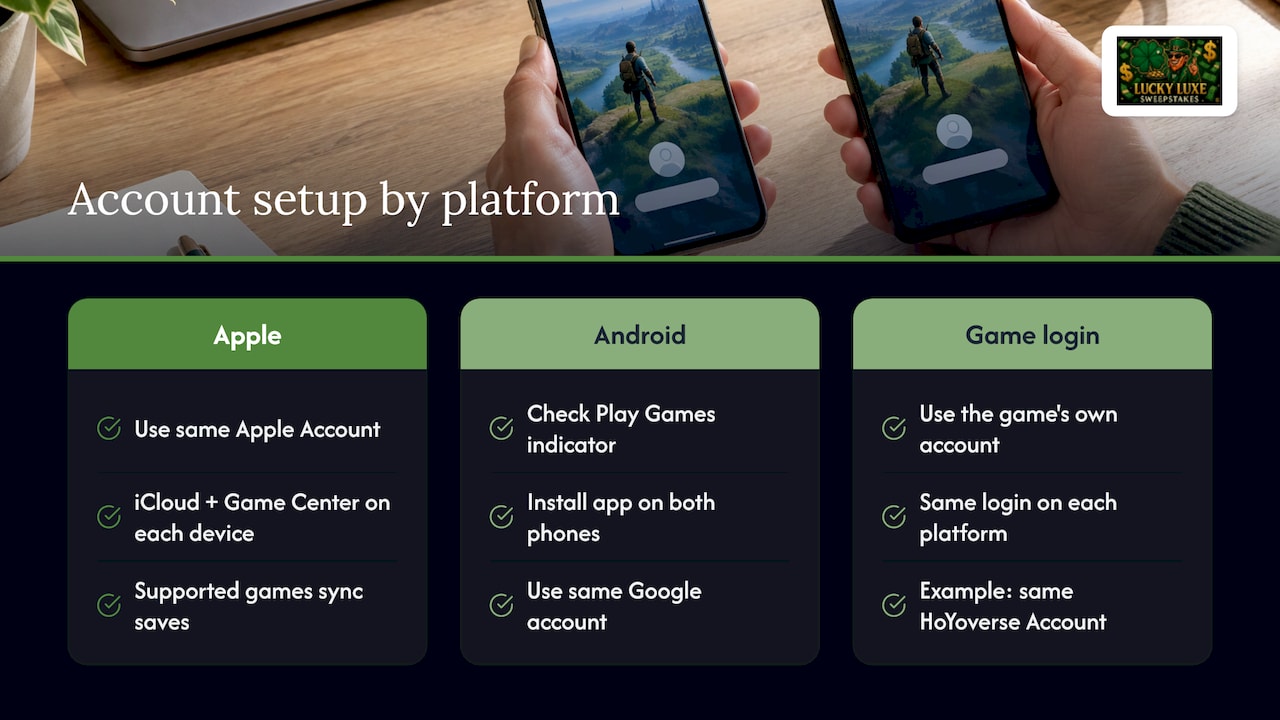
The rule is simple and the most common mistake is breaking it. On Apple devices, Apple's guidance is to use the same Apple Account for iCloud and Game Center on each iPhone, iPad, Mac, Apple TV or Apple Vision Pro, so that supported games keep progress, high scores and saves up to date across them. On Android, there is no single system for every game. Check the game's Play Store page for the Google Play Games indicator, then, as Make Tech Easier explains, install the Google Play Games app on both phones and sign in with the same Google account.
For games with their own login, the pattern is the same. HoYoverse's help center, for example, explains cross-save as signing in with the same HoYoverse Account on each platform. Genshin Impact supports PC, iOS, Android, PlayStation and Xbox this way, while Honkai: Star Rail covers PC, iOS, Android and PlayStation.
Where it goes wrong: people own two email addresses, two Apple Accounts or two Google accounts and do not remember which one they used on the first device. Before you assume the data is gone, check each account you might have used.
Step 3: Turn on cloud saving and update the app
Cloud saving is often a setting, not a default. On an iPhone, iCloud and Game Center both need to be enabled for the game to use them. On Android, the game needs Google Play Games sign-in switched on. On PC and console, look in the platform's settings for a cloud save or cloud storage option.
Also update the game and the operating system. Apple notes that if progress is missing, you should confirm that each device runs the latest OS version, in addition to using the same account. An older app version can read a save format a newer one wrote differently, or fail to connect at all.
Step 4: Confirm the save uploaded before you switch
This is the step most guides skip, and it is where progress usually disappears. Syncing is not always instant. If you close a game on a weak connection, or force-quit it, the last session may never reach the server.
A few habits make this reliable:
- Stay on stable Wi-Fi for the final minute of a session.
- Close the game normally from its menu or home screen rather than swiping it away mid-action, if the game autosaves on exit.
- Look for a sync indicator or a "last saved" time if the game shows one.
Some platforms are only now adding this visibility. Windows Central reported in November 2025 that Xbox Cloud Gaming added a timestamp in a preview build, so players could see the exact date and time a cloud game last synced. If your platform shows nothing, open the game on the second device before you stop playing on the first and make sure the latest progress appears there.
Step 5: Open the game on the second device
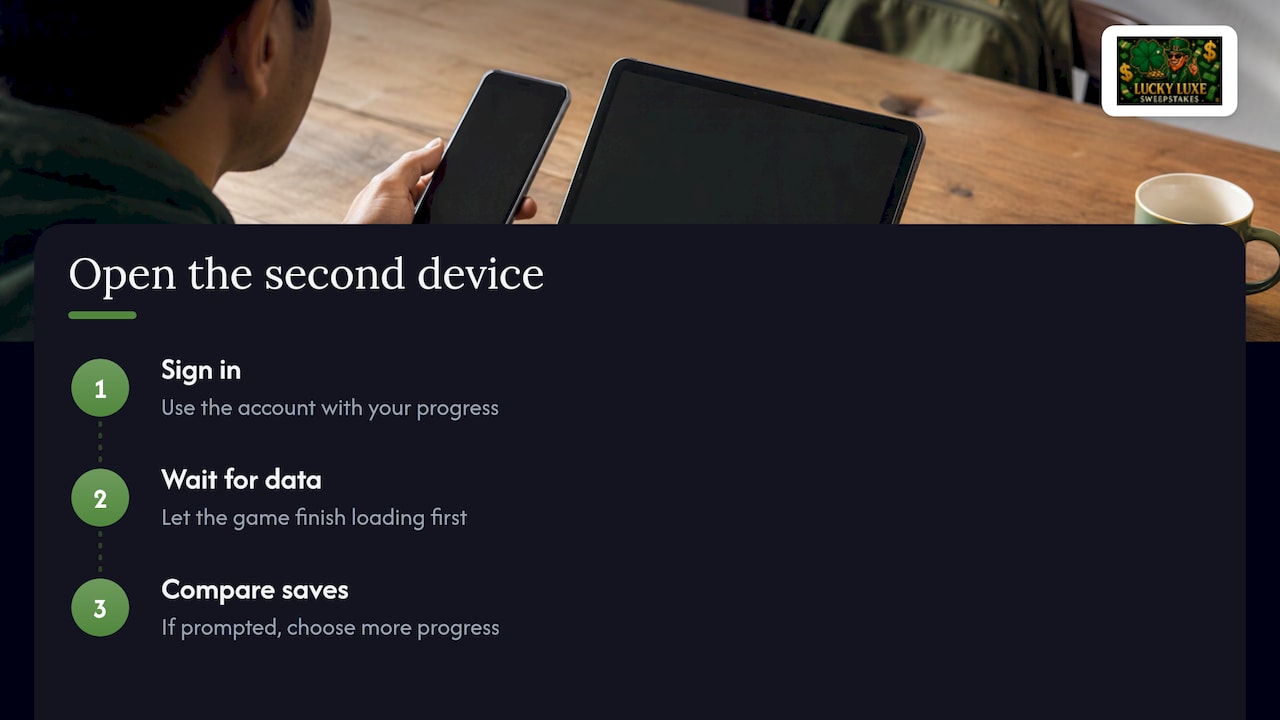
Sign in, wait for the game to finish loading its data, and only then start playing. Playing before the download completes can create a new local save, which some games then treat as the newer one and upload over your real progress. If a prompt asks which save to keep, compare the level, balance or timestamp shown and choose the one with more progress.
What to check when progress is missing or different
A missing save feels like a disaster, but it is usually one of five fixable problems. Work through them in this order, from the most common to the least.
- Wrong account. Compare the profile name on both devices. Google's own advice in its Play Community answer for a new Android phone is to sign in to the same account you used before. It also says to check which account you are using by tapping your profile image in the game's Achievements or Leaderboards screen, and to sign out and back in if it does not match.
- Cloud saving never turned on. If the original device never uploaded a save, the second device cannot download one. Go back to the first device, enable cloud saving, play briefly, then retry.
- Out-of-date app or OS. Update both, restart the device, and sign in again.
- Game does not autosave to the cloud. Not every game does. Google's same page notes that not all games automatically save progress and suggests contacting the developer directly when the usual steps do not work.
- Platform limits. Some cross-save systems have rules you should know before you change anything, covered next.
Where it goes wrong: reinstalling the game over and over, or signing in to new accounts to "test" them, can create fresh empty profiles and muddy which one holds your progress. Change one thing at a time and note the result.
Know the limits before you link or unlink
Cloud copies are not all equal, and the rules vary by publisher. Three real examples show what to look for.
| Game or service | What the rule says | What it means for you |
|---|---|---|
| Destiny 2 Cross Save | Bungie's guide says you pick one active character set that is available on all connected platforms, characters are not merged, and after you disable Cross Save you must wait 90 days to re-enable it. | Decide which account is your main one before you link. |
| Baldur's Gate 3 | Larian's support page says a Larian Account syncs a copy of your last 10 saves, stores them on its servers for up to 6 months, and that originals stay on your PC or console. | The cloud copy is a convenience, so keep your local files. |
| Honkai Impact 3rd | HoYoverse says the PlayStation version uses separate servers and does not cross-save with PC or mobile. | Check which platforms are actually supported before you buy or install. |
The pattern across all three: read the cross-save page for your game before you act, choose your main account deliberately, and do not treat a cloud save as permanent storage. Larian also says inactive cross-saves older than 6 months will expire and be permanently deleted from September 29, 2026, which is a good reminder to open any game you care about every so often.
Keep your account safe, because it now holds your progress
Once your progress lives on an account, that account is worth protecting. A few habits go a long way:
- Use a unique password and turn on two-factor sign-in. Our guide to two-factor authentication for gaming accounts walks through setup and recovery.
- Learn how single sign-on in gaming works, since it is how one login can open several services.
- Be wary of messages asking you to "verify" or "sync" your account through a link. See how to avoid phishing scams aimed at social casino players.
- Make sure the email address on the account is one you still use, so a password reset can reach you.
If you want the broader picture of how login protection works on gaming sites, our explainer on what secure login means in gaming covers it in plain terms.
Playing on more than one screen
Most people do not play in one place. You might spin a few slots on your phone during a break and pick the same session back up on a tablet or laptop at home. That habit is one reason we wrote about why multi-device gaming access matters. A smooth experience across screens depends on three things you now know how to check: one account, one sign-in method you can remember, and a connection that finishes the job before you close the app.
It also helps to keep play deliberate when you move between devices. If you play slots, set your limits in advance rather than on whichever screen is in your hand. Our piece on managing a bankroll when playing online slots offers a simple way to do that.
Perspective
We build Lucky Luxe around the idea that a game should be easy to pick up and easy to come back to. Slots, fishing tables and arcade games are things people play in short bursts, on whatever screen is nearby, so a clear interface and an account you can sign in to without fuss matter more than almost any feature.
Our advice is the same whatever you play: treat your login as the thing that holds your progress. Choose one account, keep its email and password current, add two-factor protection, and sign in the same way each time. When the account is the anchor, switching from phone to laptop is a non-event.
We also think fair play and clear presentation go together. Players should always know which account they are using and what they are playing for, whether that is entertainment with Gold Coins or Sweeps Coins used in sweepstakes games. Our rare fishing table games, regular promotions and referral rewards are all meant to give you more reasons to enjoy the platform, wherever you log in.
Skyline
Try Lucky Luxe on your own devices
If you like the idea of a library with variety, Lucky Luxe brings together premium slots, fish tables, arcade games and live dealer titles in one place, with a user-friendly interface designed to feel the same wherever you sign in. Players use virtual Gold Coins for entertainment play, and bonus Sweeps Coins, received through promotions or Gold Coin purchases, are used in sweepstakes games for a chance to redeem prizes. Lucky Luxe is for adults in the United States, excluding certain states.
You can see the current games, promotions and referral rewards on the Lucky Luxe home page. If you hit a snag signing in, the login troubleshooting guide walks through the usual fixes.
A quick pre-switch checklist
Keep this short list handy for any game on any device:
- Note the account name shown in the game.
- Confirm cloud saving or account linking is on.
- Update the app and the operating system.
- Finish your session on a stable connection and close the game normally.
- Open the game on the second device and let it load fully before you play.
- Check that your level, balance or progress matches.
It takes about two minutes, and it prevents nearly every case of lost progress described above.
FAQ
How do I sync data across devices?
Sign in to the same account on every device, turn on the game's cloud save or account link, and let the first device finish uploading before you open the game on another. On Apple devices that means the same Apple Account for iCloud and Game Center, and on Android it usually means the same Google account with Google Play Games.
How do I know if sync is on?
Look in the game's settings for a cloud save, backup or linked account option and check that it shows your account name. Some platforms also show a last-synced time. If yours does not, open the game on a second device and see whether the latest progress appears.
Why is my progress missing on my new device?
The most common reason is that you are signed in to a different account than the one that holds your progress. Compare the profile name on both devices, update the app and the operating system, and sign in again. If the game never saved to the cloud, it needs to be linked from the original device first.
Can I move progress between different kinds of devices?
Often yes, but only where the game supports cross-save across those platforms. Check the publisher's cross-save page, because some systems limit you to one active character set, or keep separate servers for certain platforms.
Is a cloud save the same as a backup?
Not always. Some cloud copies keep only the most recent saves for a limited time, so it is wise to keep your account details secure and open games you care about from time to time.
Sources
- Access your gameplay progress on all of your Apple devices, Apple Support
- How to synchronize game data across platforms, HoYoverse Help Center
- Destiny 2: Cross Save Guide, Bungie Help
- Larian Account information, Larian Studios Support
- How to Sync and Transfer Game Progress Between Android Devices, Make Tech Easier
- Xbox Cloud Gaming save update, Windows Central
- Transfer game progress to new phone, Google Play Community